Installing Modules
Almost everything you read in Keep Thy Heart Bible Reader comes from a module — a self-contained file holding a Bible translation, a commentary, a dictionary, a book, a topical index, or a set of cross-references. The app ships with enough to get started; the Module Manager is how you add the rest.
Opening the Module Manager
Go to File → Module Manager. You can also press Ctrl+Shift+P and type "module manager".
The dialog has two tabs: Available (modules you can install) and Installed (what you already have).
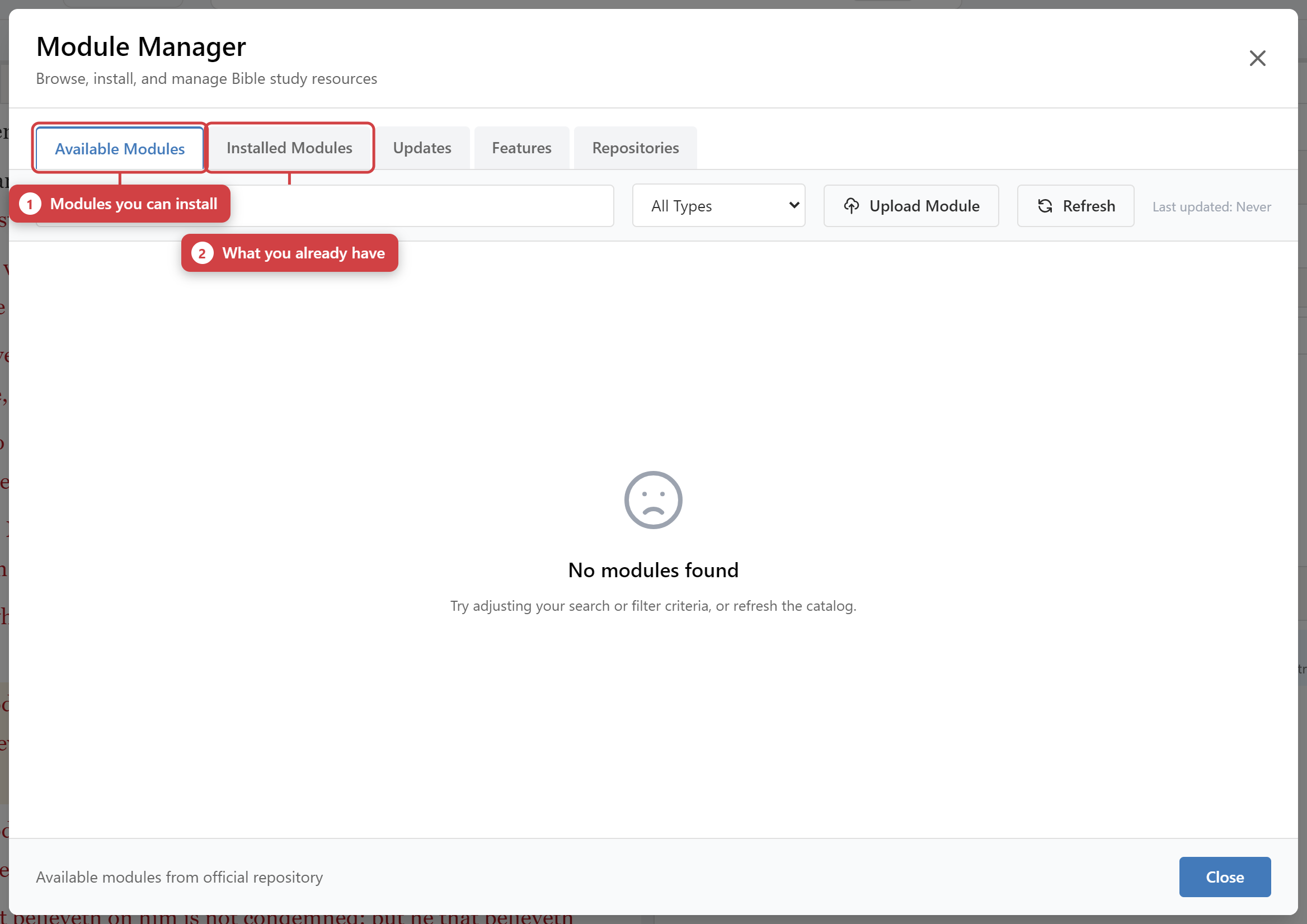
Installing a module
- Switch to the Available tab. The app fetches the catalog from
https://modules.bibledesktop.org/. - Narrow the list with the filter buttons — Bibles, Commentaries, Dictionaries, Books.
- Or use the search box to find a module by name.
- Click Install. A progress indicator shows the download, and you can pause, resume, or cancel it while it runs.
Once installed, the module appears immediately: new translations in the Bible pane dropdown, new commentaries as tabs in the study pane, and so on. No restart needed.
Installing from a file
If you already have a module file — downloaded separately, shared by someone else, or converted yourself — click Install from File and select the .db file from your computer.
Managing what you have
On the Installed tab you can:
- Uninstall a module you no longer need. This removes the module's content, not your notes or highlights — those are yours and live in a separate database.
- Check for updates and install newer versions of modules you already have.
- Rebuild the search index for a module. Do this if search results from that module look incomplete or out of date.
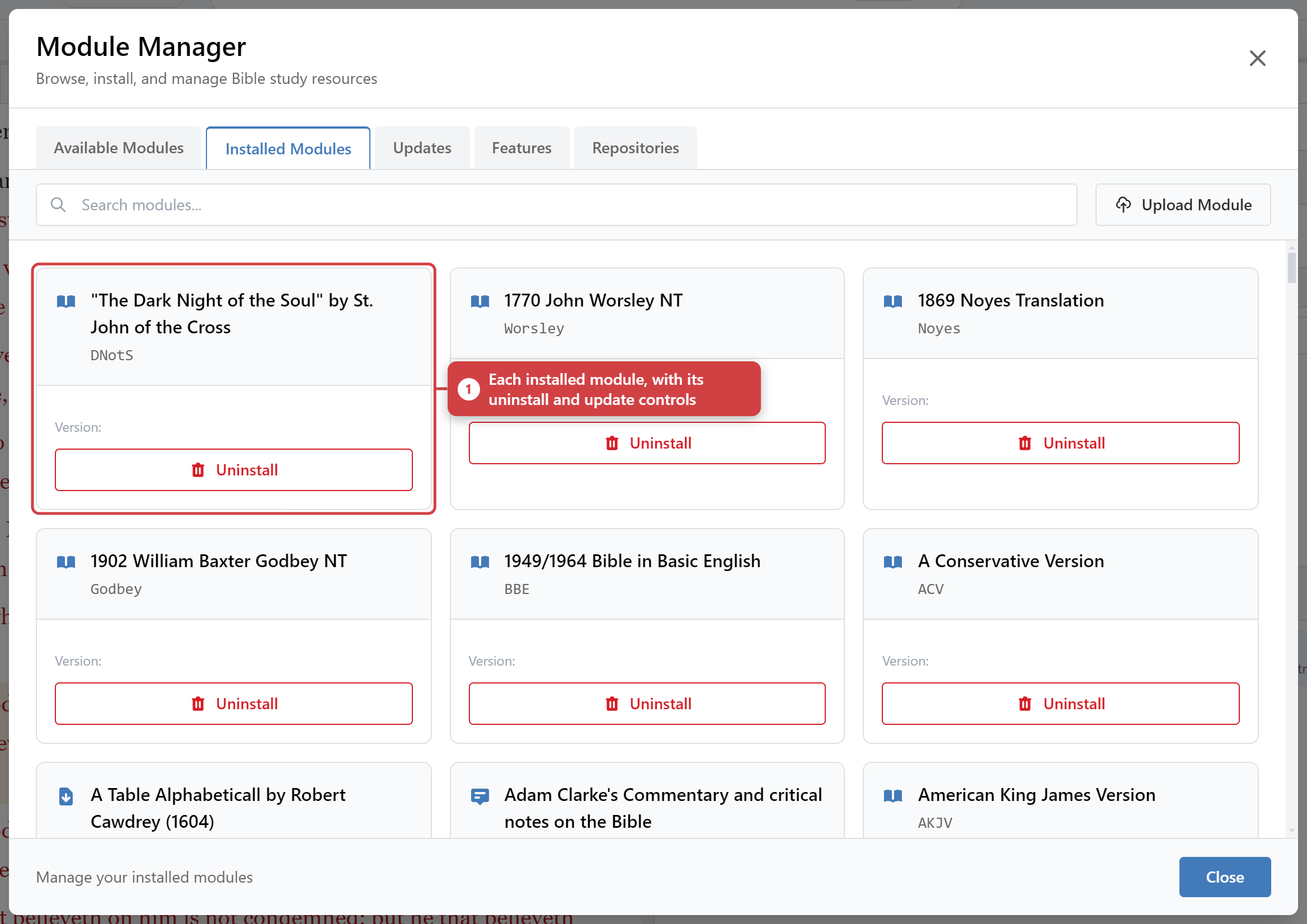
Where modules are stored
Modules are ordinary files on your computer, kept in the application's data directory. Because they are just files, you can back them up with your normal backup tools — though it's usually easier to reinstall them from the repository.
Your personal data — notes, highlights, bookmarks, sessions — is stored separately from module content, so uninstalling or updating a module never touches your own work. See Backup & Restore for protecting that.
Repositories
By default the app is configured with one official repository. If you need to point at a different or additional source, open the repository settings in the Module Manager and add its URL.
The official module repository is not live yet. Until it is, use Install from File to add modules you have obtained separately.
Troubleshooting
The Available tab is empty or won't load. The app can't reach the repository. Check your internet connection, and confirm the repository URL in the repository settings.
A module installed but doesn't appear. Try restarting the app. If it still doesn't show, check the Installed tab to confirm the install actually completed.
Search doesn't find text I know is there. Rebuild that module's search index from the Installed tab.
Study mode shows no interlinear data. Interlinear text comes from its own module. Install an interlinear module and make sure it is enabled — see Study Tools.