Reading the Bible
The Bible pane is the centre of Keep Thy Heart Bible Reader, and everything else in the window is arranged around it. This page covers moving through Scripture, switching translations, the three display modes, and reading several passages at once.
The reading area
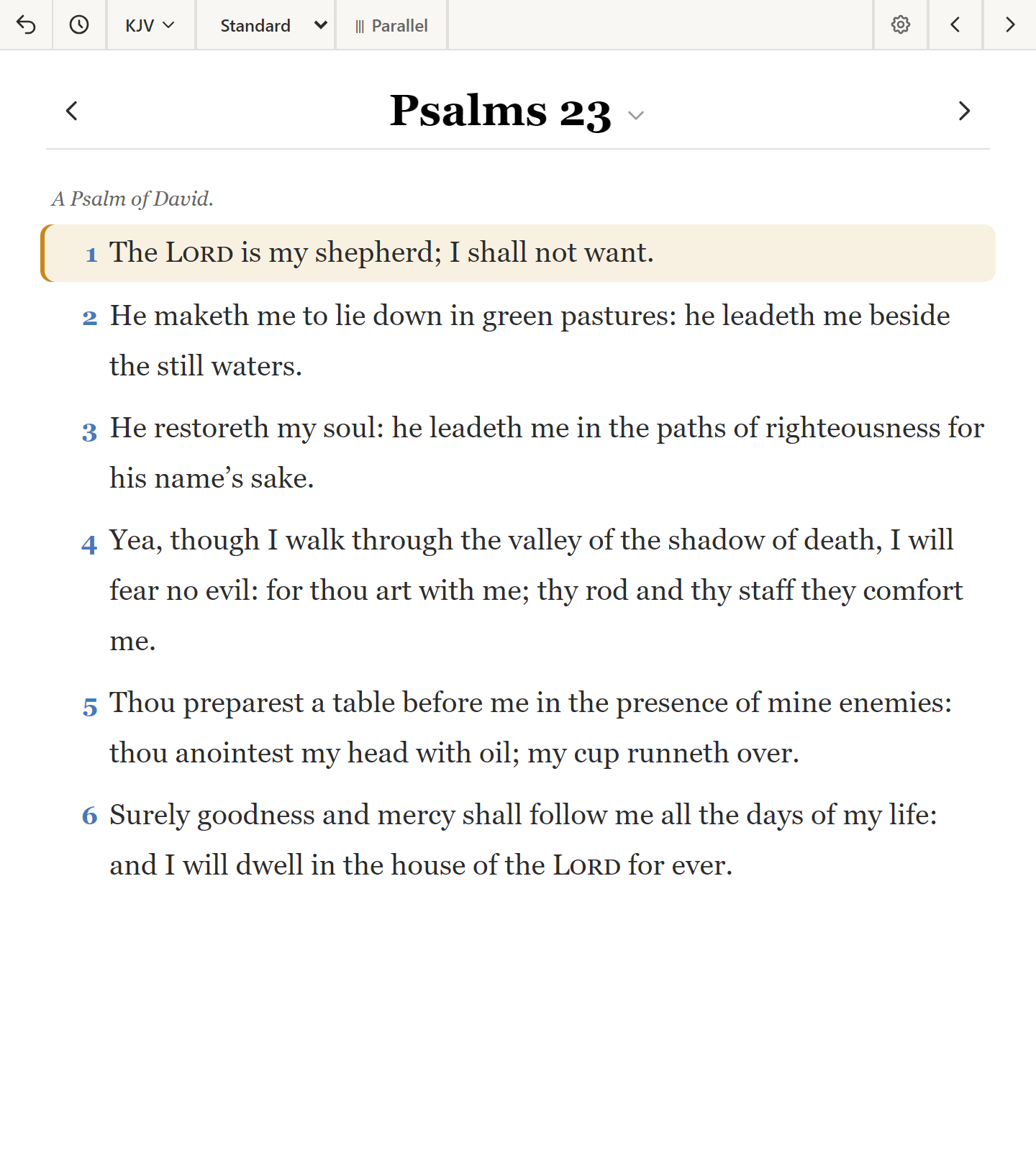
Bible text is set in a serif face at a comfortable size and line height, because most of what you do in this app is read. Verse numbers sit as small markers beside the text rather than interrupting it.
At the top of the pane is a header with the translation selector, the current reference, navigation arrows, and the display mode controls.
Navigating
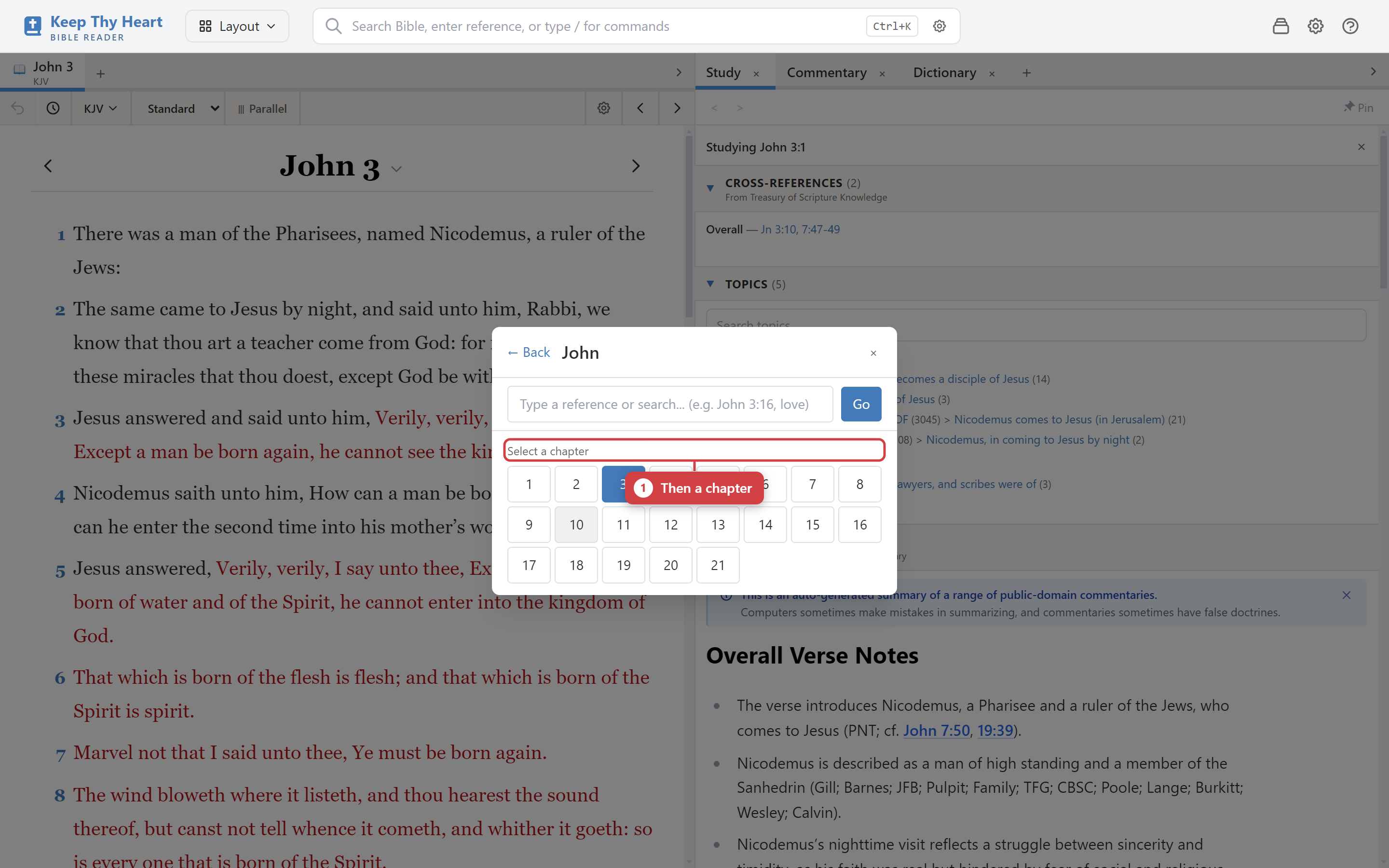
The book and chapter picker. Click the current reference in the header to open a picker covering both testaments. Choose a book, then a chapter.
The search bar. Type a reference — John 3:16, Romans 8, Gen 1:1-5 — and press Enter. The app recognises references automatically; you don't need a special command. See Searching.
Chapter arrows. The left and right arrows in the header move a chapter at a time, carrying across book boundaries.
Keyboard. Alt+Down and Alt+Up move to the next and previous chapter. Ctrl+G opens a "go to verse" prompt.
History. The pane remembers where you have been. Alt+Left goes back and Alt+Right goes forward, exactly like a web browser. If you followed a cross-reference or jumped from a commentary, back returns you to where you were.
Selecting a verse
Click a verse number to select it. The selected verse is marked in the text, and — this is the important part — the study pane follows it. Commentary, dictionary, cross-reference, topic, and note panes all update to reflect the verse you have chosen.
You can also select a range by clicking across several verses, which is useful before copying.
Switching translations
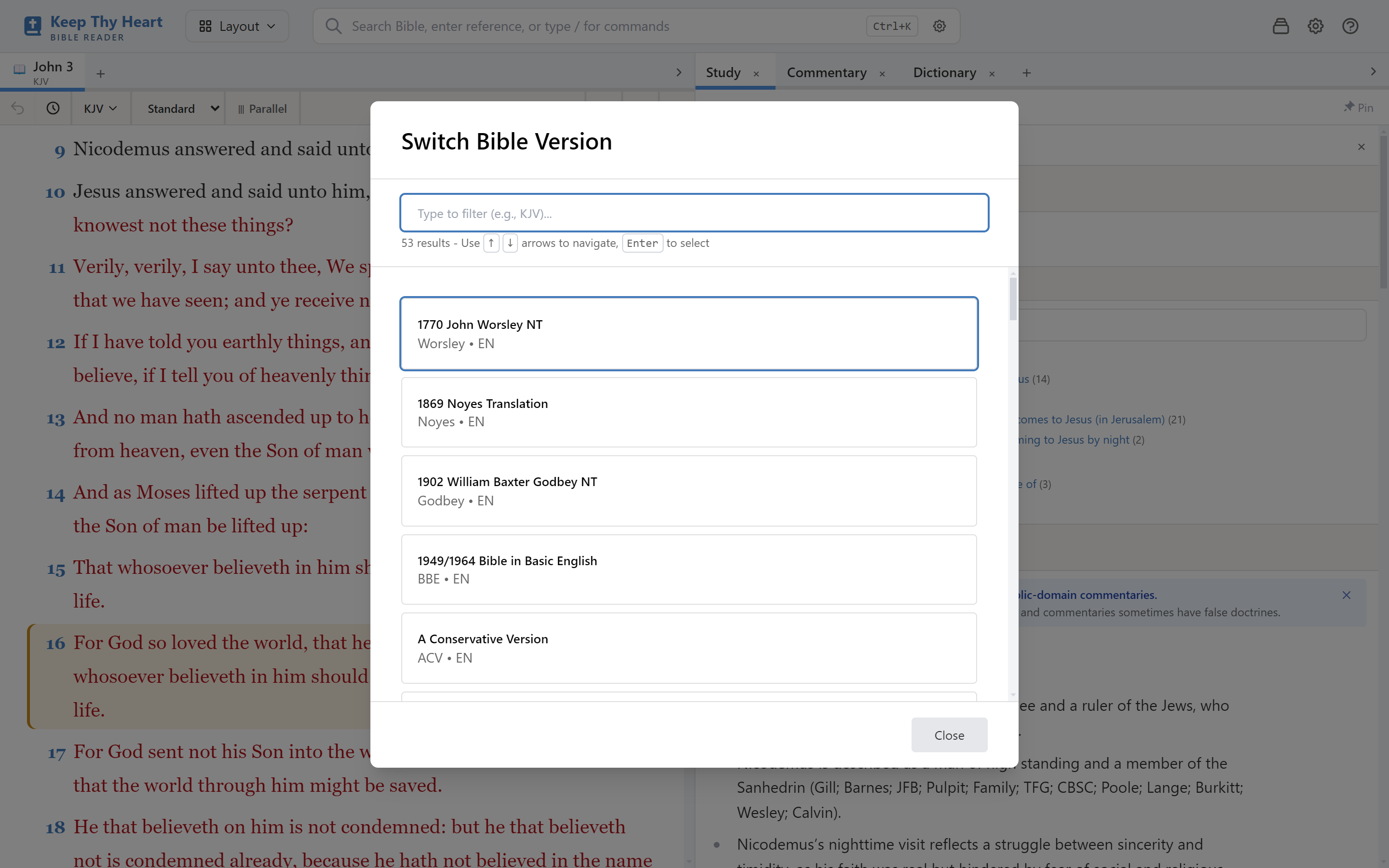
The dropdown at the top-left of the pane lists every installed translation. Switching keeps you on the same passage, so comparing renderings is a matter of flipping between entries.
Translations in a language other than your interface language are listed with a language prefix, for example [ESP]. There is a filter box at the top of the list for when you have many installed.
Parallel view
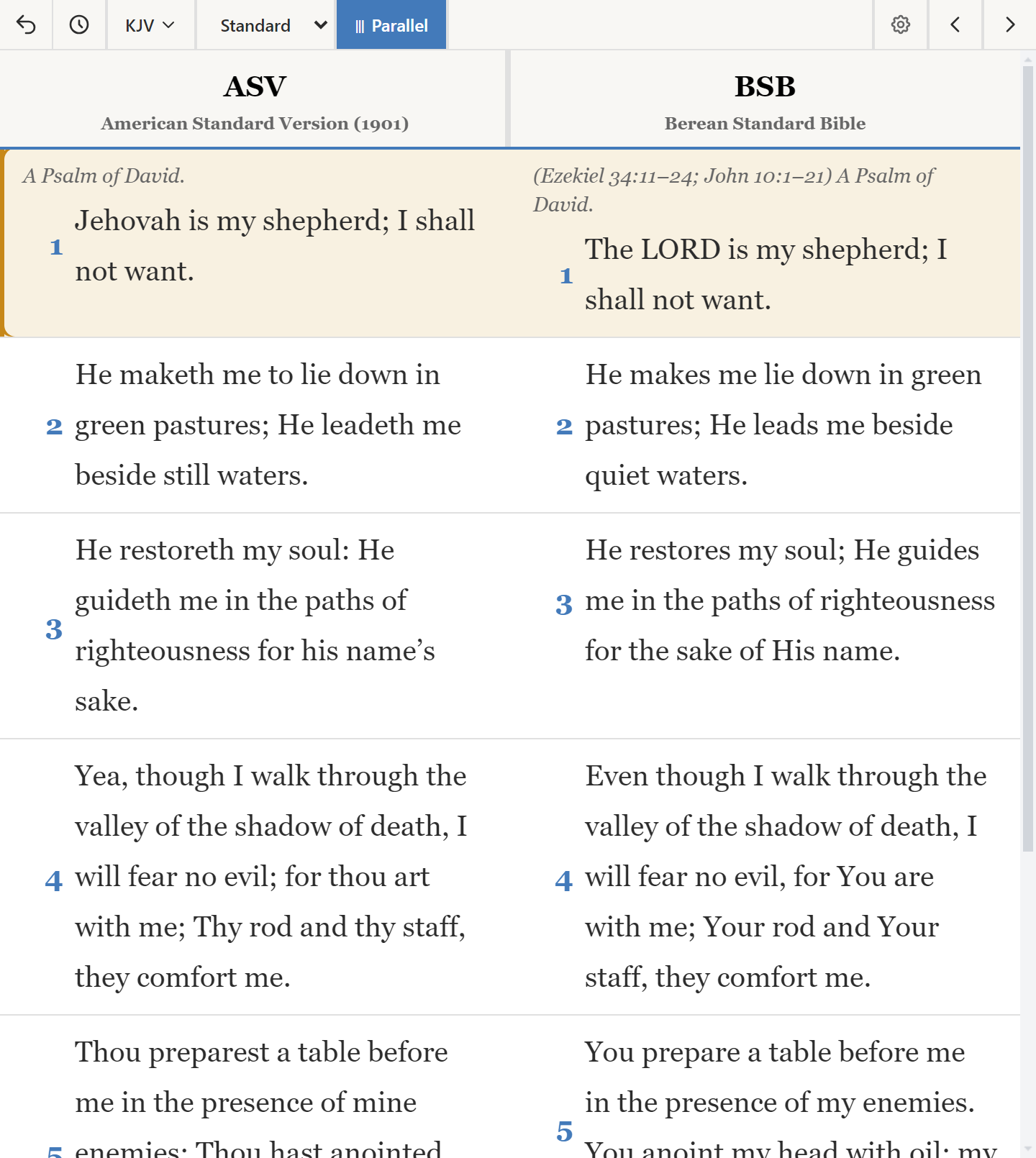
To see translations side by side rather than one after another, use the Parallel View button in the pane header. Each translation gets its own column against the same verses, which makes differences in wording immediately visible.
Display modes
Three modes, selectable from the pane header:
Simple shows just verse numbers and text. Nothing else competes for attention. This is the mode for reading a whole chapter or book at a stretch.
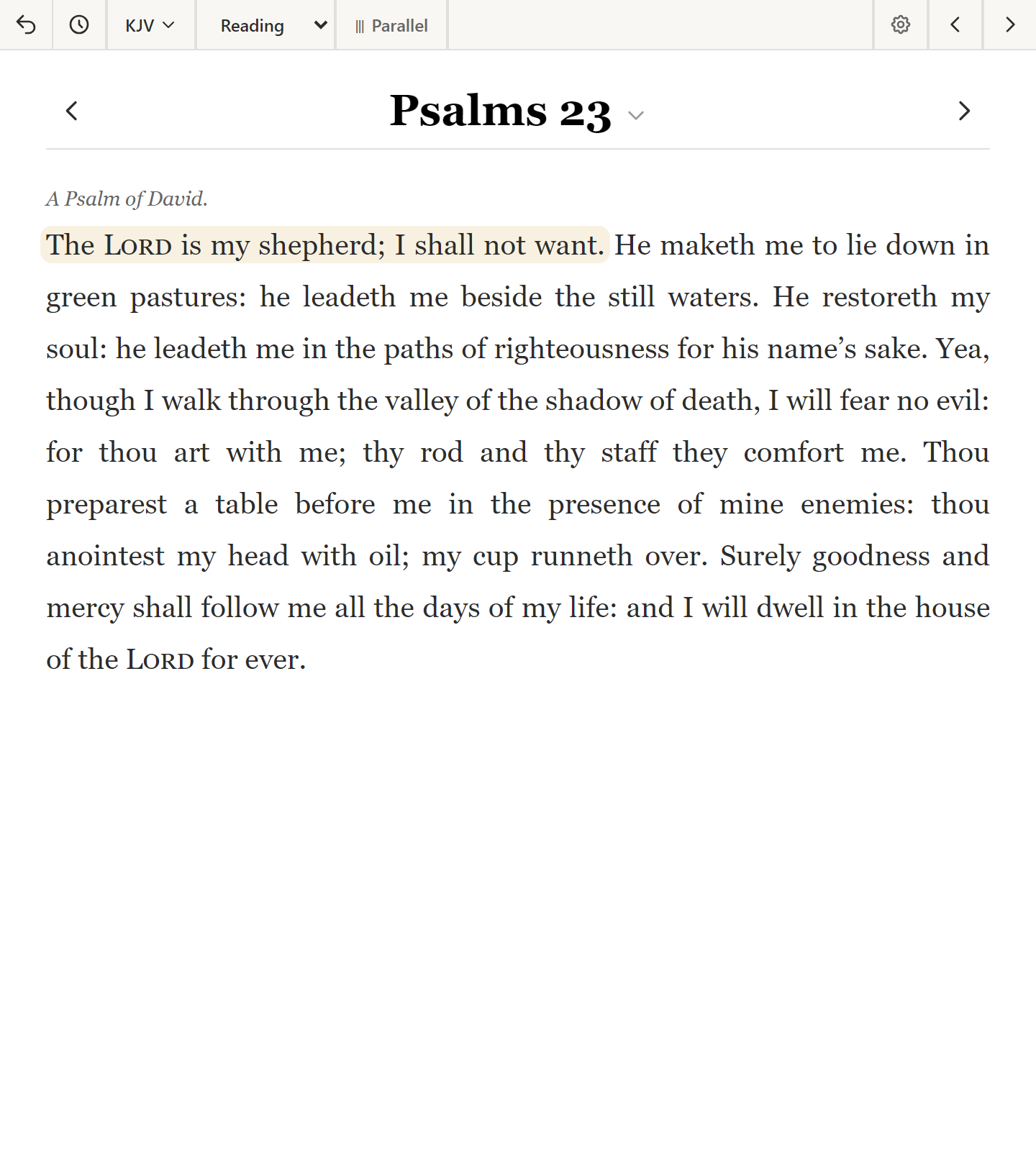
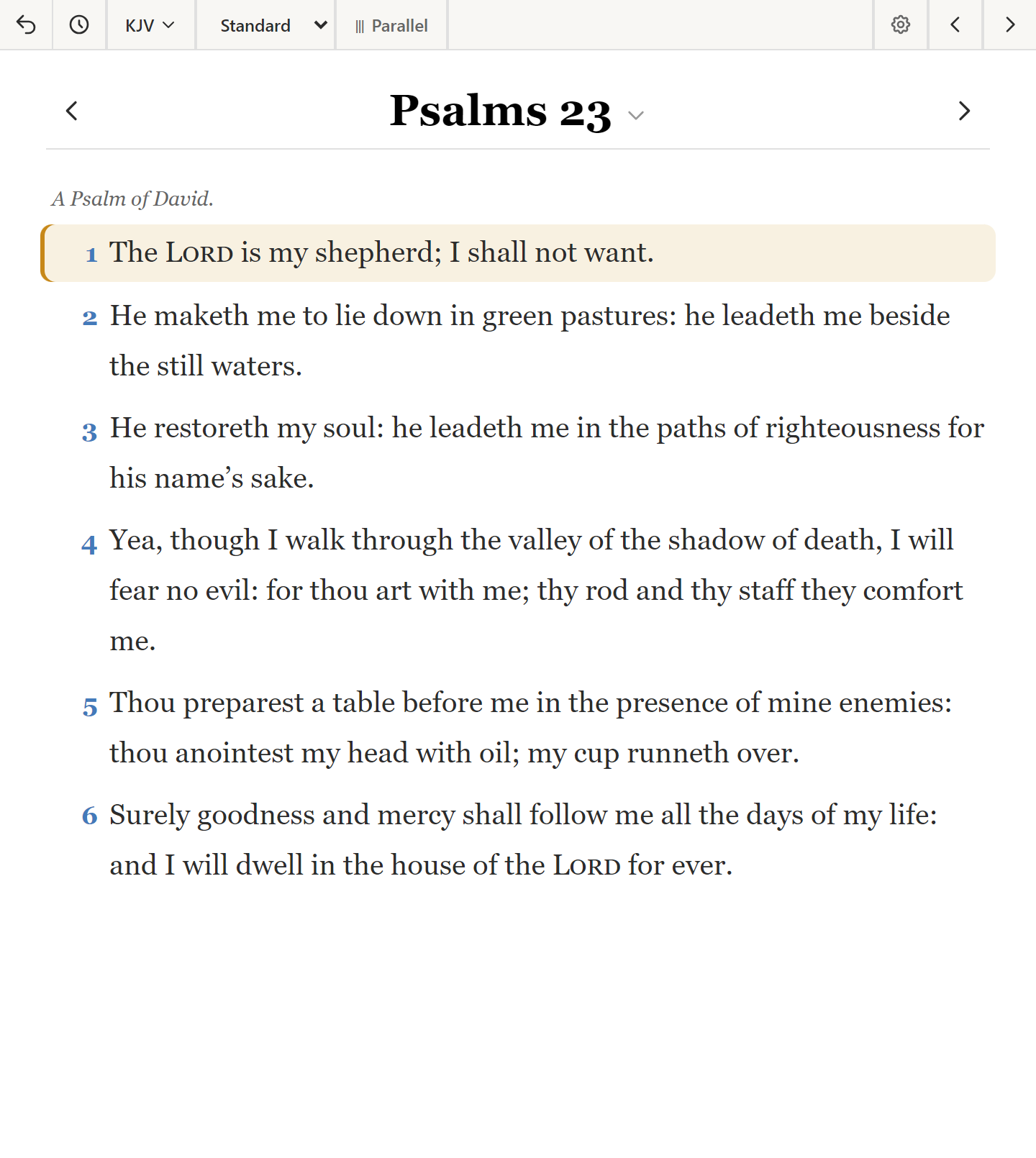
Standard is the general-purpose mode. It adds footnote markers, cross-reference indicators, and section headings, so you can see where there is more to look at without leaving the text.
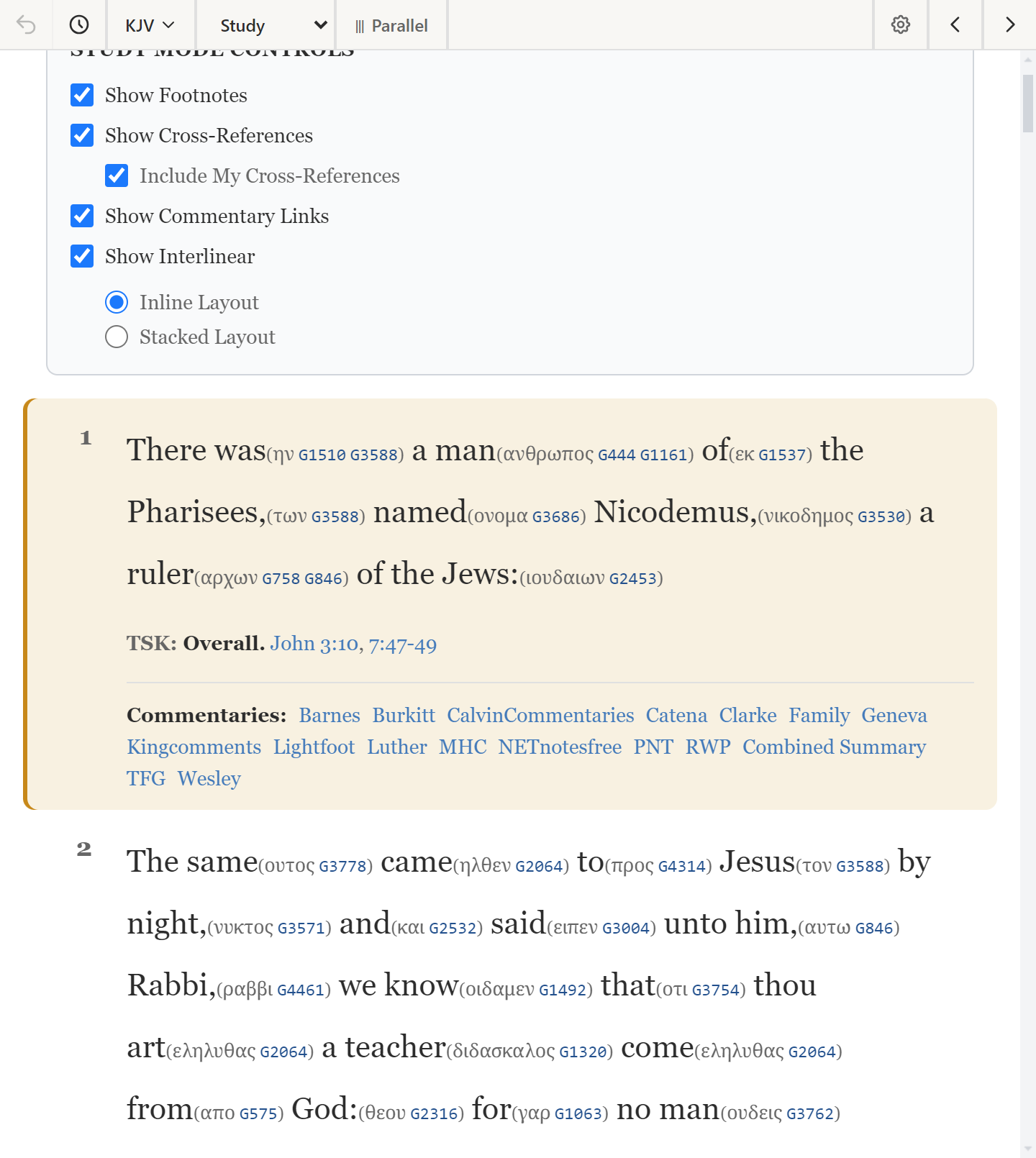
Study is the deepest mode. Each word is stacked with its original-language form, transliteration, Strong's number, and morphology code. It requires interlinear data — see Study Tools for the full explanation.
A good working pattern is to read in Simple, switch to Standard when something catches your attention, and drop into Study when you want to know what a particular word is doing.
Multiple passages at once
The Bible pane supports tabs, so you can hold several passages open — the one you're studying, the one it quotes, and the one you're comparing it to. Open a new tab from the tab bar, switch by clicking, drag to reorder, and close with the tab's close button.
Your tabs are part of the session, so they come back when you reopen the app.
You can go further and split the Bible pane itself, or pop a passage out into its own window. See Sessions & Layout.
Text appearance
Font, size, line height, and red-letter text for the words of Christ are all adjustable. Text size runs from 14px to 30px. See Personalizing.
What's next
- Commentaries, dictionaries, and original-language tools: Study Tools.
- Finding a verse by word or by meaning: Searching.
- Highlighting and annotating what you read: Notes & Highlights.