Bookmarks
Bookmarks are kept in a list and can be renamed and reordered. For example, you might have one bookmark for personal devotions and another for a church Bible study.
Adding a bookmark
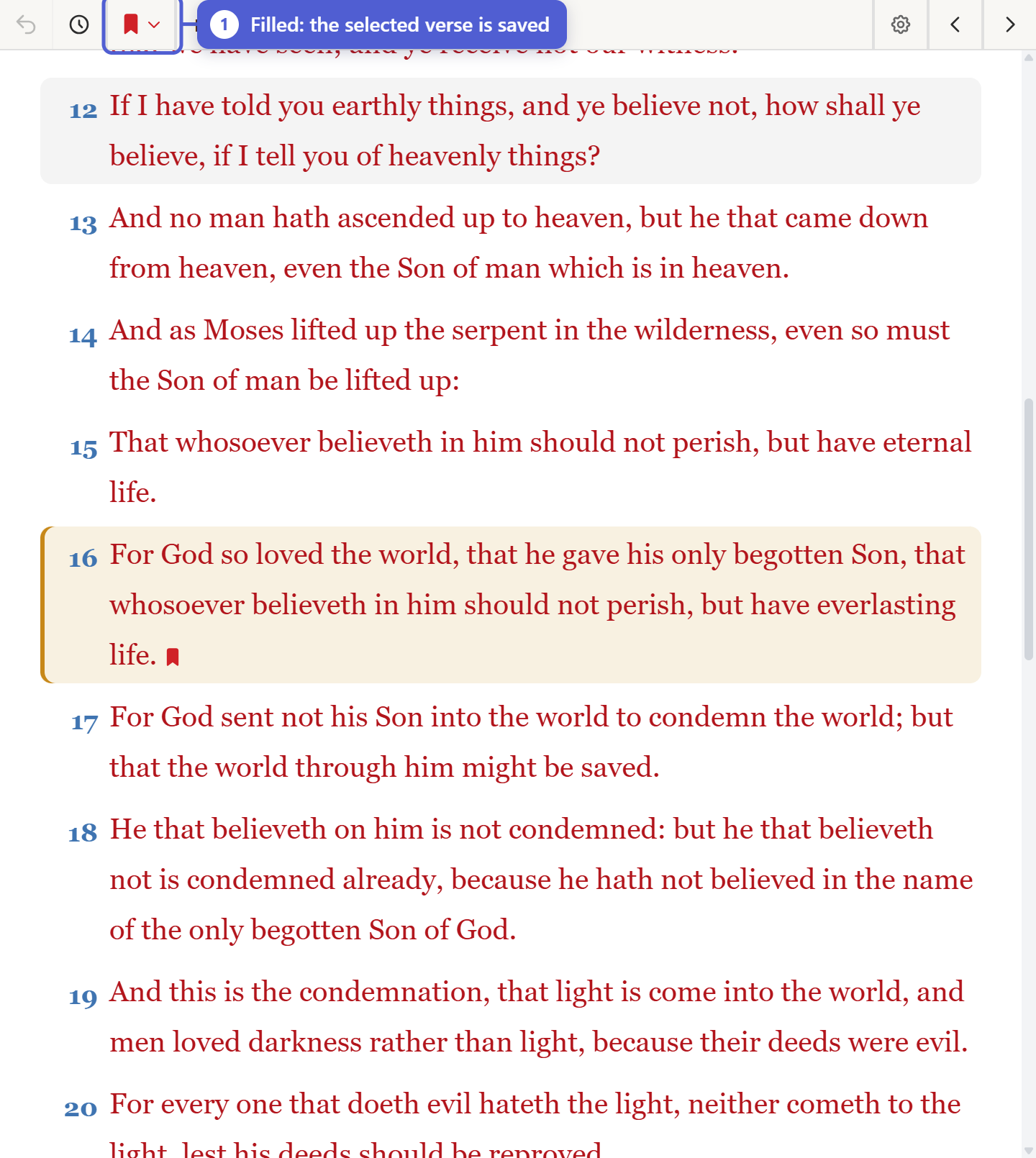
Select a verse, open the bookmark menu (the ribbon button) in the Bible pane's toolbar, and choose Add Current Verse. Ctrl+D adds the bookmark directly, without opening the list. Pressing it again on a bookmarked verse removes the bookmark.
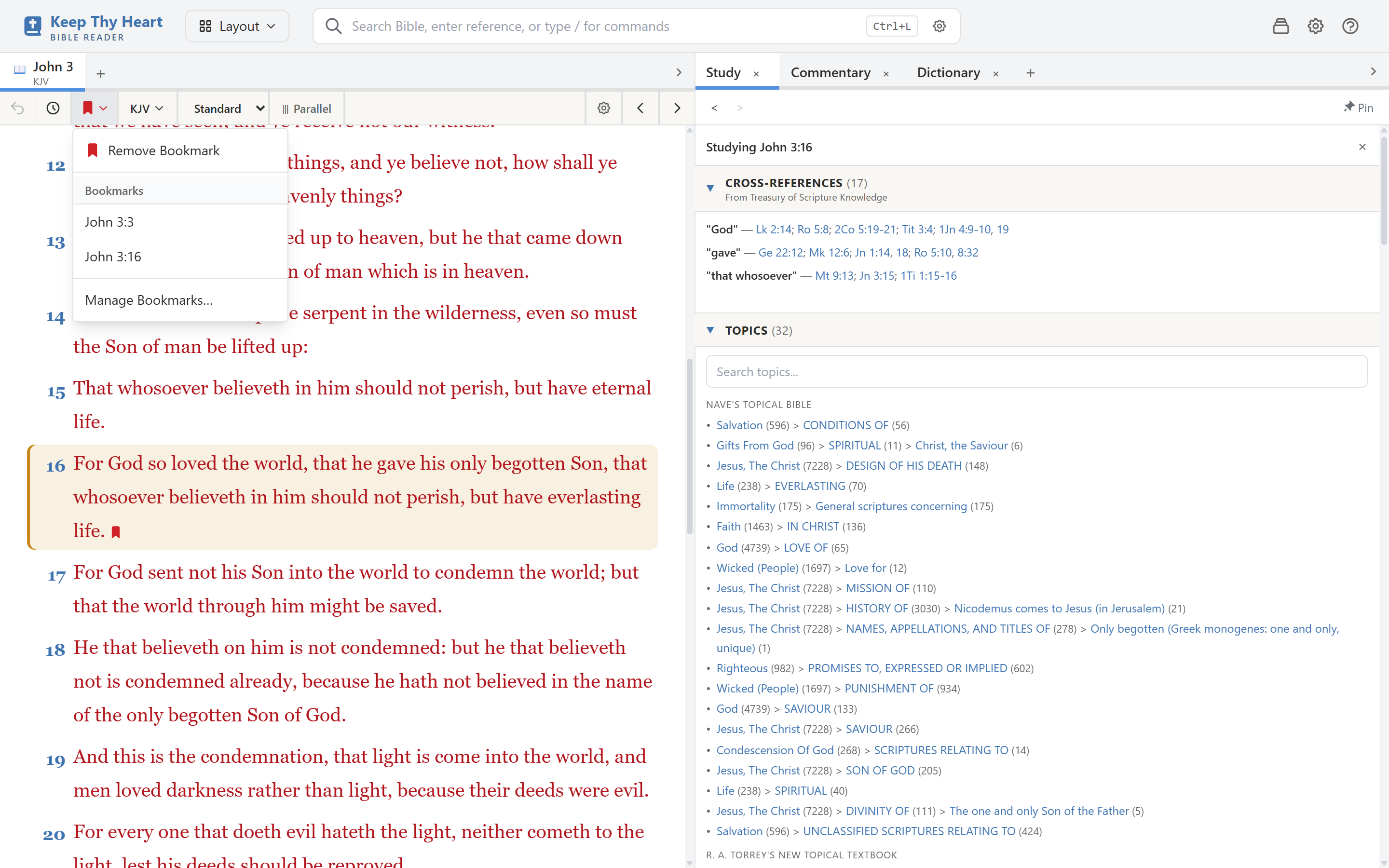
If the selected verse is already bookmarked, the first item in the list reads Remove Bookmark instead.
To bookmark a passage, select the range first: click the first verse, then shift-click the last.
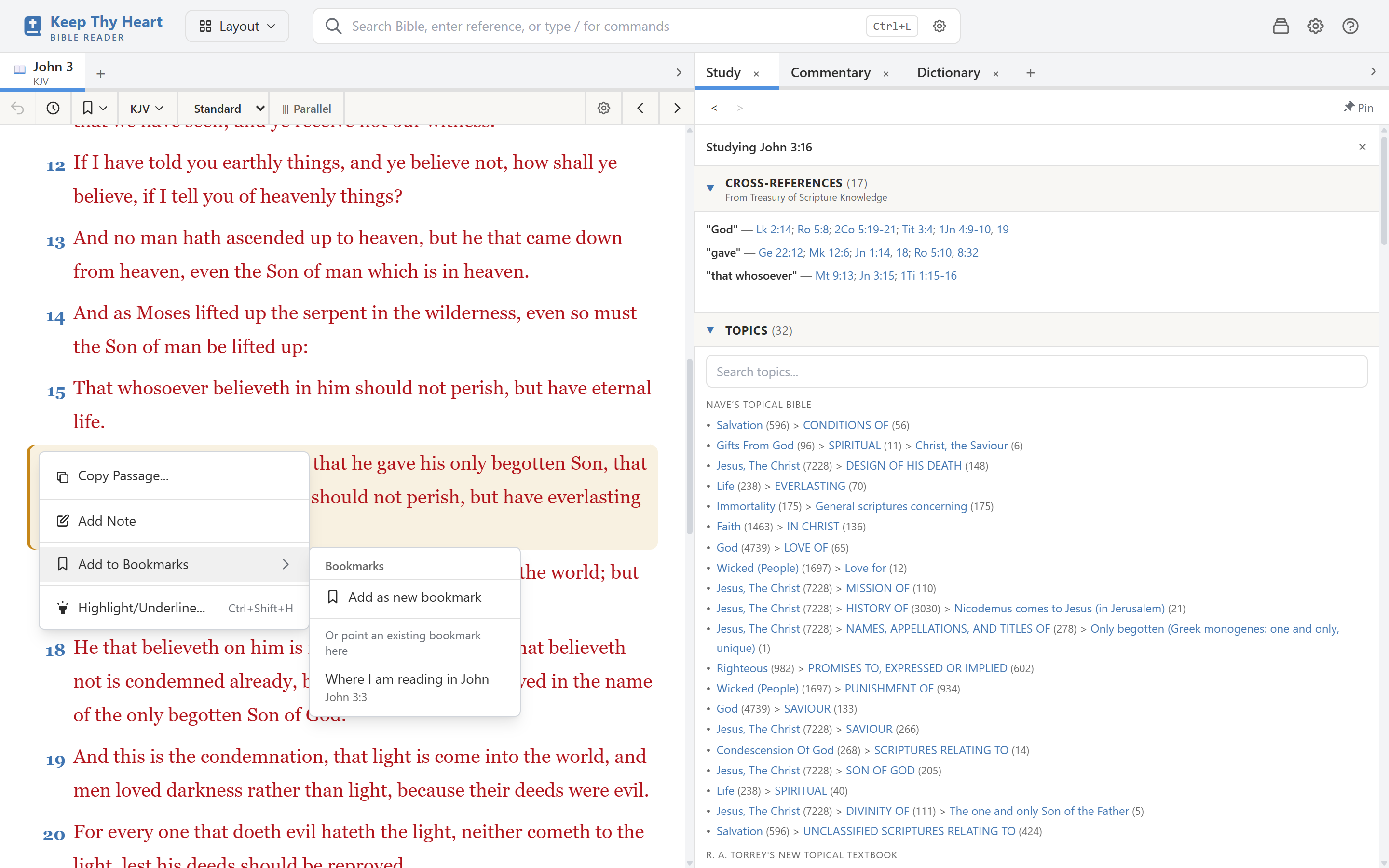
You can also right-click a verse or selected passage, point to Add to Bookmarks, and choose Add as new bookmark. This menu can also move an existing bookmark; see Moving a bookmark. If the verse is already bookmarked, the menu shows Remove Bookmark.
Going to a bookmark
Open the bookmark menu in the toolbar and click a bookmark. The Bible pane goes to it.
Bookmarked verses show a small red ribbon beside them in the text.
Naming a bookmark
An unnamed bookmark shows its reference, such as John 3:16 or Romans 8:28-39. To name one, open Manage Bookmarks… and choose Rename beside it.
Moving a bookmark
Right-click a verse and point to Add to Bookmarks. Under Or point an existing bookmark here, the submenu lists your existing bookmarks. Choose one to point it at this verse instead of creating a new bookmark.
- A named bookmark keeps its name. For example, a bookmark named Where I'm reading in Romans keeps that name and now points to Romans 9:1 instead of Romans 5:12.
- An unnamed bookmark changes its label to the new reference.
Managing bookmarks
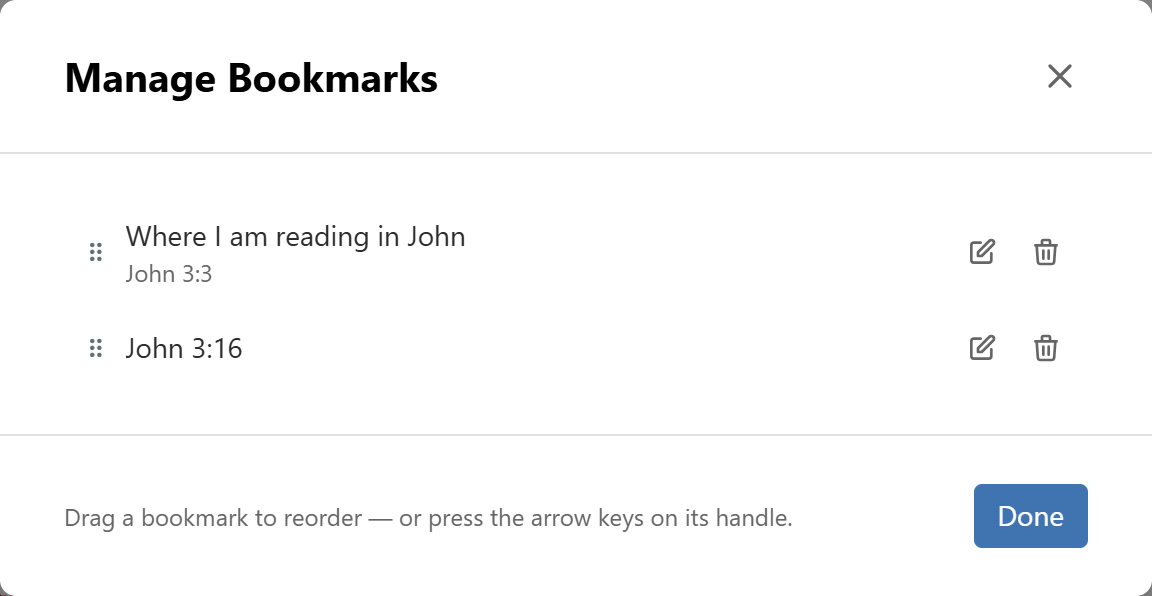
Manage Bookmarks…, at the bottom of the bookmark menu, or Manage Bookmarks in the command palette, opens the full list. From there you can:
- Rename a bookmark, or clear its name to show the reference again.
- Reorder bookmarks by dragging the handle on the left. With the keyboard, focus the handle and press the up and down arrow keys. The list is never re-sorted automatically.
- Remove a bookmark.
- Go to a bookmark by clicking its name. This closes the dialog.
Esc cancels a rename in progress. Pressed again, it closes the dialog. Done closes the dialog.
Backups
Bookmarks are stored with your notes and highlights and are included in backups. See Backup & Restore.