Keyboard Shortcuts
The same list is available inside the app at Help → Keyboard Shortcuts, or by pressing Ctrl+/.
On macOS, use Cmd wherever Ctrl is listed below.
Navigation
| Shortcut | Action |
|---|---|
| Ctrl+G | Go to verse |
| Alt+Up | Previous chapter |
| Alt+Down | Next chapter |
| Alt+Left | Navigate back in history |
| Alt+Right | Navigate forward in history |
| Ctrl+L | Focus the search bar |
The two pairs are easy to confuse, and the distinction is worth learning: Up/Down move through the Bible, chapter by chapter. Left/Right move through your history, like a browser's back and forward.
Search
| Shortcut | Action |
|---|---|
| Ctrl+F | Find in current pane |
| Ctrl+Shift+F | Search all modules (advanced search) |
| Escape | Close dialog or cancel search |
Editing and annotation
| Shortcut | Action |
|---|---|
| Ctrl+C | Copy selection |
| Ctrl+X | Cut selection |
| Ctrl+V | Paste |
| Ctrl+Shift+H | Highlight selection |
| Ctrl+U | Toggle underline on selection |
| Ctrl+Shift+N | Add note on selected verse |
| Ctrl+D | Bookmark current verse |
View
| Shortcut | Action |
|---|---|
| Ctrl++ | Zoom in |
| Ctrl+- | Zoom out |
| Ctrl+0 | Reset zoom to actual size |
Application
| Shortcut | Action |
|---|---|
| Ctrl+Shift+P or F1 | Open the command palette |
| Ctrl+, | Open Preferences |
| Ctrl+/ | Show keyboard shortcuts |
| Ctrl+Shift+I | Toggle developer tools |
The command palette
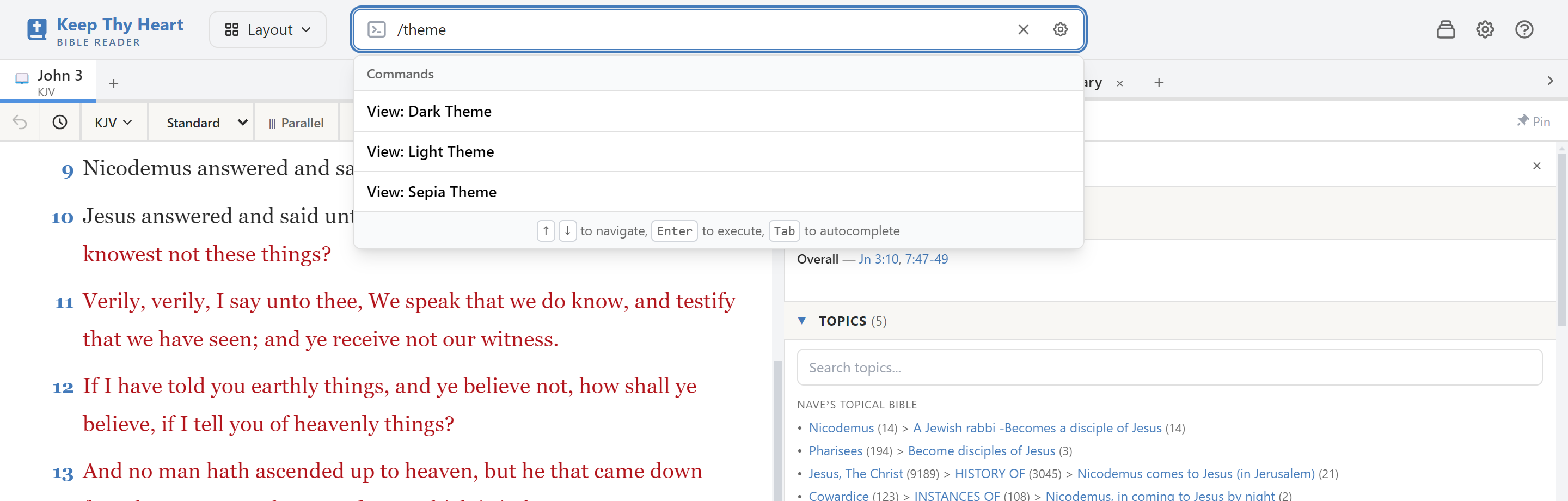
If you remember only one shortcut, make it Ctrl+Shift+P (or F1).
The command palette searches every command in the app by name, including ones with no shortcut of their own. Type "module" to reach the Module Manager, "theme" to switch themes, "export" to back up your notes. Commands have aliases too, so "settings" finds Preferences and "docs" finds the documentation.
You can also reach it by typing / in the search bar.