Notes & Highlights
Keep Thy Heart Bible Reader separates what you read from what you write. Modules are read-only content; everything you create lives in your own database, backed up and restored independently. This page covers all of it: highlights, verse notes, documents, the journal, and prayer lists.
Highlighting
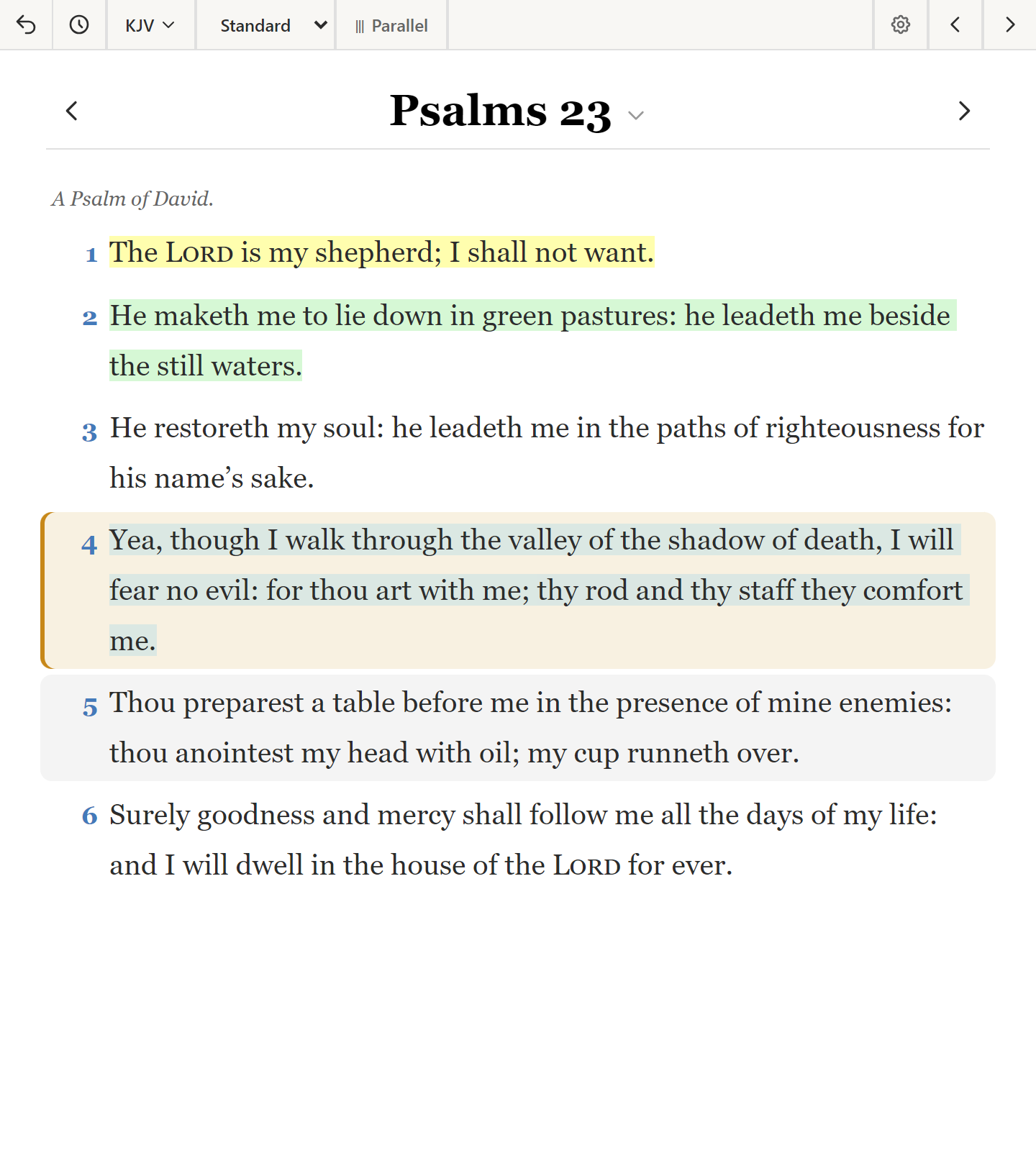
Highlights color-code verses so your Bible carries the visual memory of your study.
- Select one or more verses in the Bible pane.
- Right-click and choose Highlight/Underline….
- Pick a color — yellow, green, blue, pink, orange, and more.
The verse is then displayed with that background color. To remove one, right-click and choose Remove Highlight; to change it, pick a different color.
The floating toolbar
Select text within a verse and a small floating toolbar appears, offering highlight, underline (Ctrl+U), and remove formatting. This is the quicker route when you want to mark a phrase rather than a whole verse.
Ctrl+Shift+H highlights the current selection from the keyboard.
Using colors well
The app assigns no meaning to colors — that's yours to decide. What matters is consistency. Many people settle on something like yellow for promises, green for commands, blue for prophecy, and stick to it; after a year the colors become a map you can read at a glance.
Verse notes
Verse notes attach to a specific verse and appear in the Verse Notes tab.
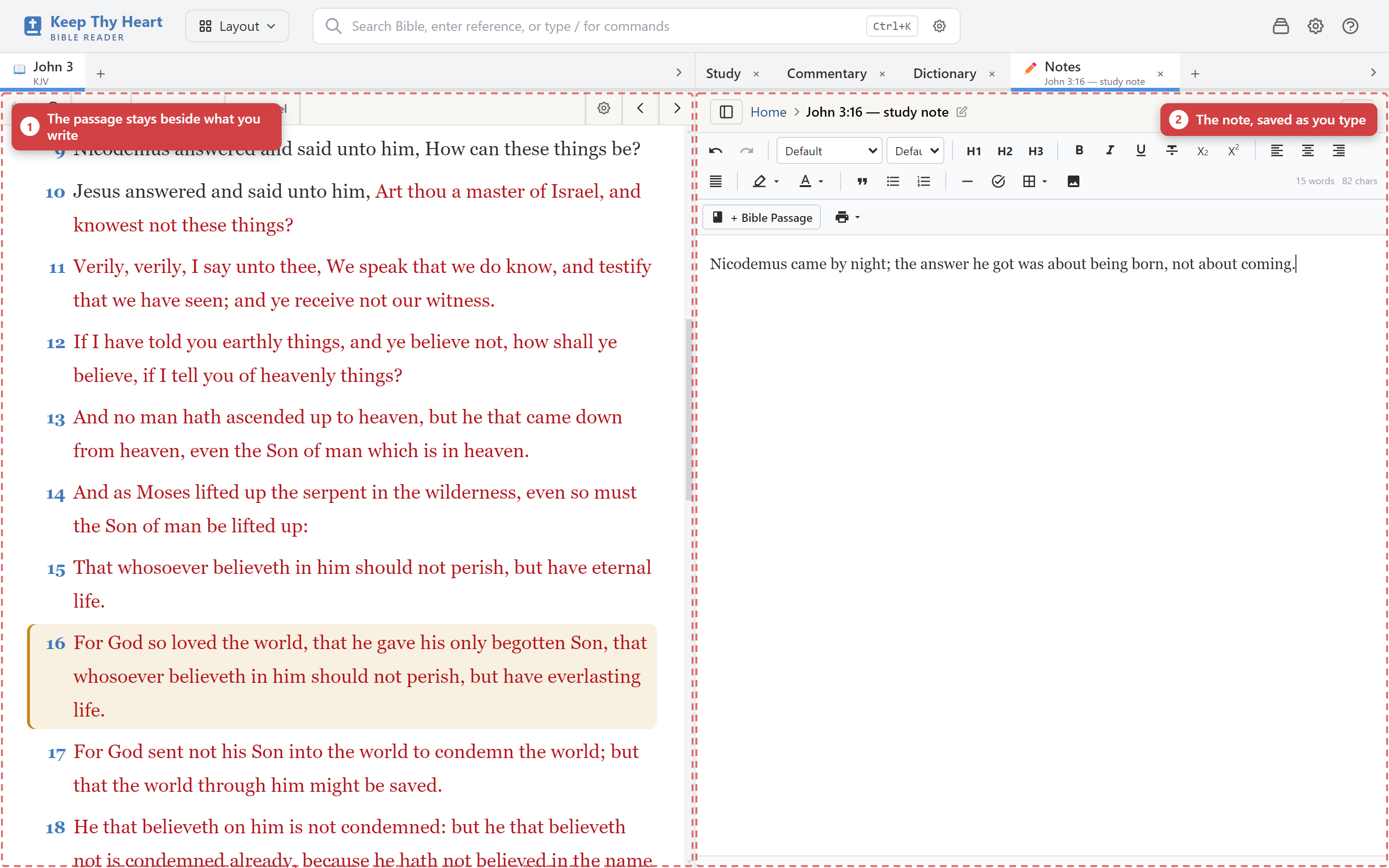
- Select a verse, then click New Note in the tab — or right-click the verse and choose Add Note (Ctrl+Shift+N).
- Type into the rich text editor. Notes save themselves as you write.
- Verses that have notes show a small note icon in the Bible pane.
Because notes are verse-linked, they surface again whenever you return to that passage — which is the point. Notes you wrote three years ago meet you where you left them.
Documents
Documents are long-form writing not tied to any single verse: sermon outlines, research, topical studies, lesson plans.
- Switch to the Documents tab and click New Document, then give it a title.
- The same rich text editor applies.
- Documents save automatically and can be organized with tags.
Journal
The Journal tab is a dated space for daily reflection. Each entry is stamped with the current date automatically, so the structure takes care of itself and you can just write.
Prayer lists
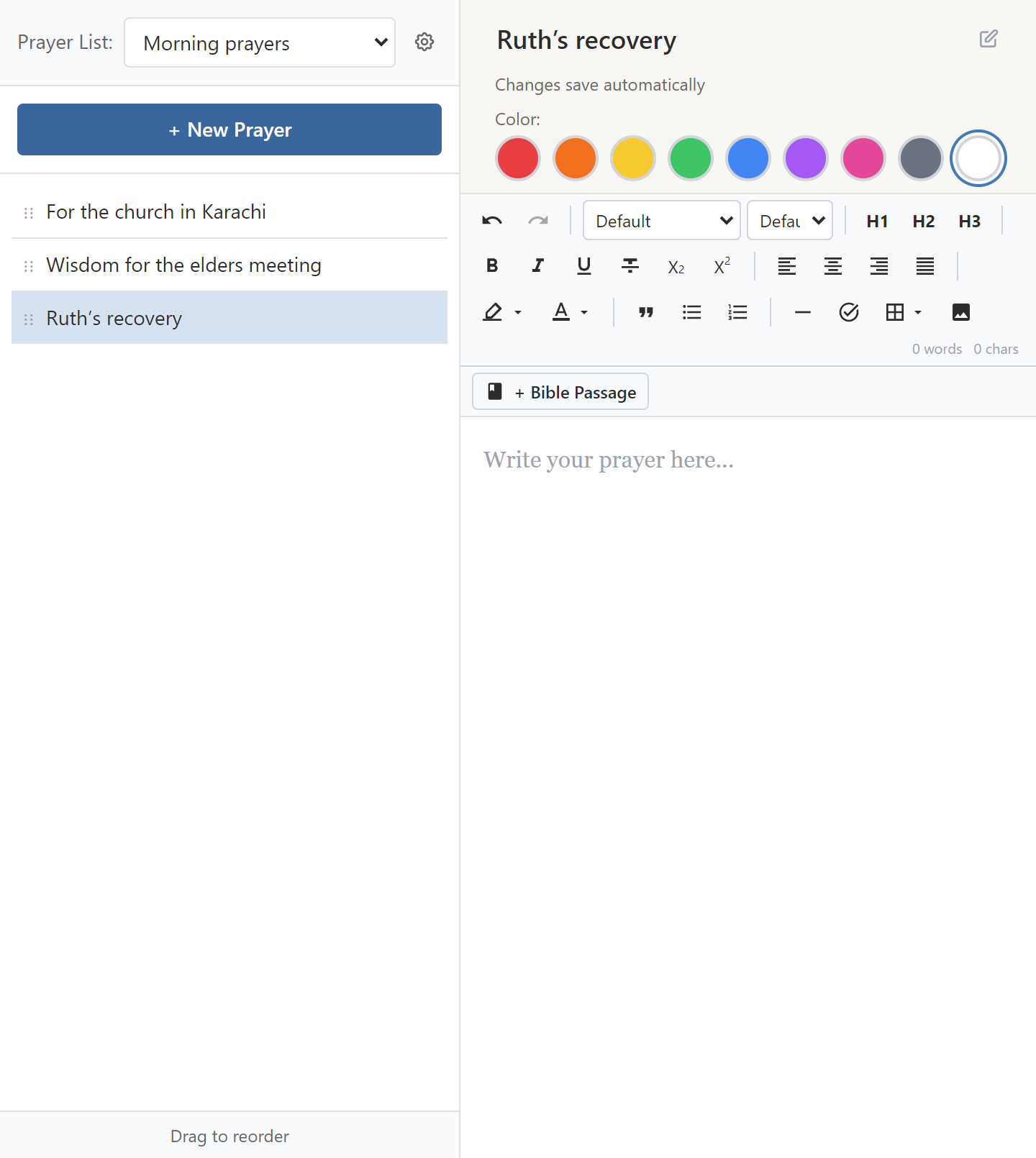
The Prayer tab tracks prayer requests.
- Keep multiple lists to separate categories — family, church, mission, world — each with a name and an optional color.
- Switch between them with the list selector at the top of the tab.
- Click New Prayer to add a request, with a title and a body for details.
- Mark a prayer answered and it moves to a separate Answered section, so the record of answered prayer is kept rather than deleted.
- Drag to reorder within a list; delete what you no longer need.
Prayers can have Bible verses linked to them, which is useful when you're praying Scripture back over a situation.
The rich text editor
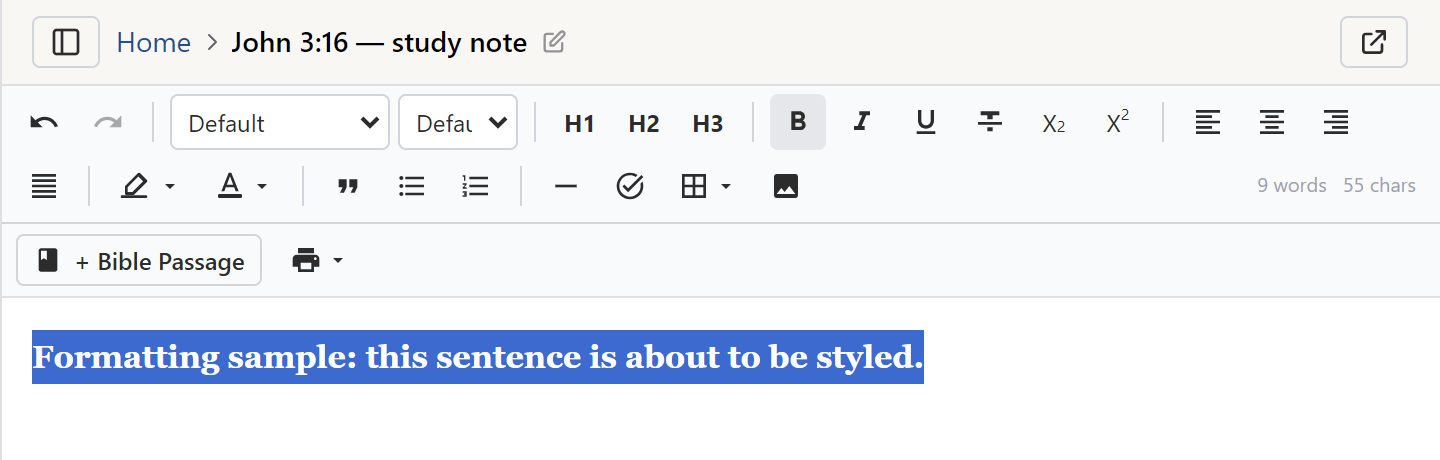
All four note types share one editor, which supports:
- Bold, italic, underline, strikethrough
- Headings (H1, H2, H3)
- Bulleted and numbered lists
- Block quotes
- Tables, images, and task lists
- Scripture references, automatically linked — type a reference in a note and it becomes a link that navigates the Bible pane
- Tags for organization
That auto-linking is worth using deliberately. A sermon outline whose references are all live links becomes something you can preach from inside the app.
Finding your notes
The notes tree has a search box that matches on note titles and on references, so John 3:16 finds notes attached to that verse and Genesis 1 finds everything in that chapter. Tags cut across passages, letting you gather related notes from all over Scripture.
Your data is yours
Notes, highlights, bookmarks, and sessions are stored in a database separate from module content. Updating or uninstalling a module never touches them.
Back them up regularly with File → Export My Notes — see Backup & Restore.
What's next
- Saving and organizing verses themselves: Bookmarks & Collections.
- Getting your notes out of the app: Copying & Exporting.