Searching
Keep Thy Heart Bible Reader searches the Bible and can also search the text of your other modules (like commentaries).
The search bar
Ctrl+L focuses the search bar. It has three uses:
- Search. Type a word or phrase. After three characters, matching verses appear as suggestions. Press Enter to open the full results.
- Navigate. Type a reference (
John 3:16,Romans 8,Gen 1:1-5) to go to it. - Run commands. Type
/to search commands by name. The command palette is also available with Ctrl+Shift+P or F1.
With an empty query, the bar lists your recent searches and commands.
When Ideas Search is available, the icon at the left of the search bar chooses the search type: Search (a magnifier) for keyword search, or Ideas Search (a light bulb). See Ideas Search.
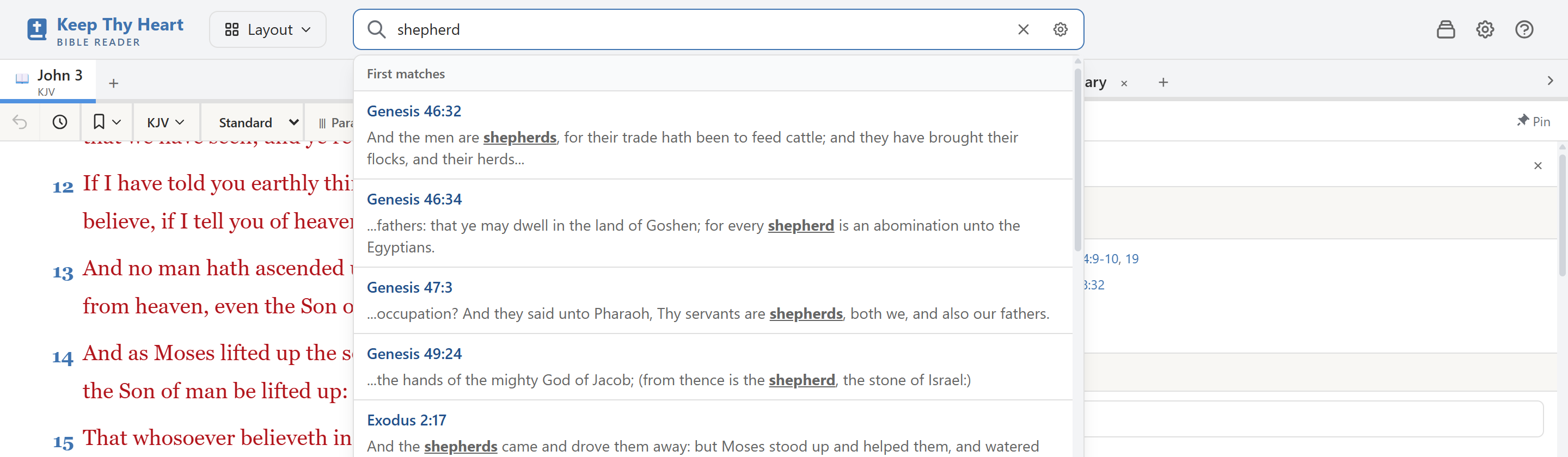
Search results
Results open below the Bible pane by default. To open them in a tab on the study side, or in a full-height column on the right, change Search results pane in the Search section of Preferences.
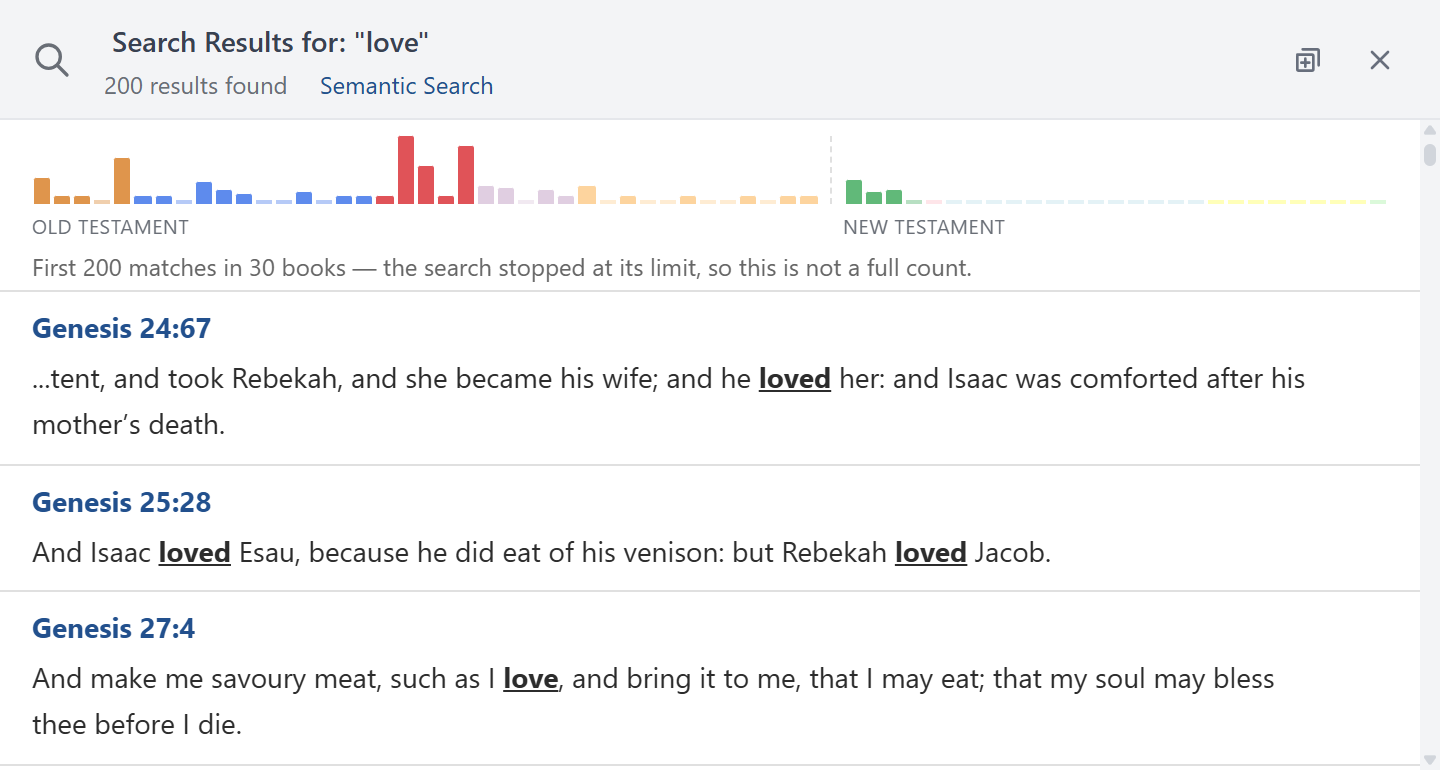
- The header shows the query and the number of matches.
- A distribution graph shows how matches are spread across the books of the Bible.
- Each result shows the matching text with the search term highlighted. Click a result to go to that verse.
- Results from fuzzy matching are marked Fuzzy.
Advanced search
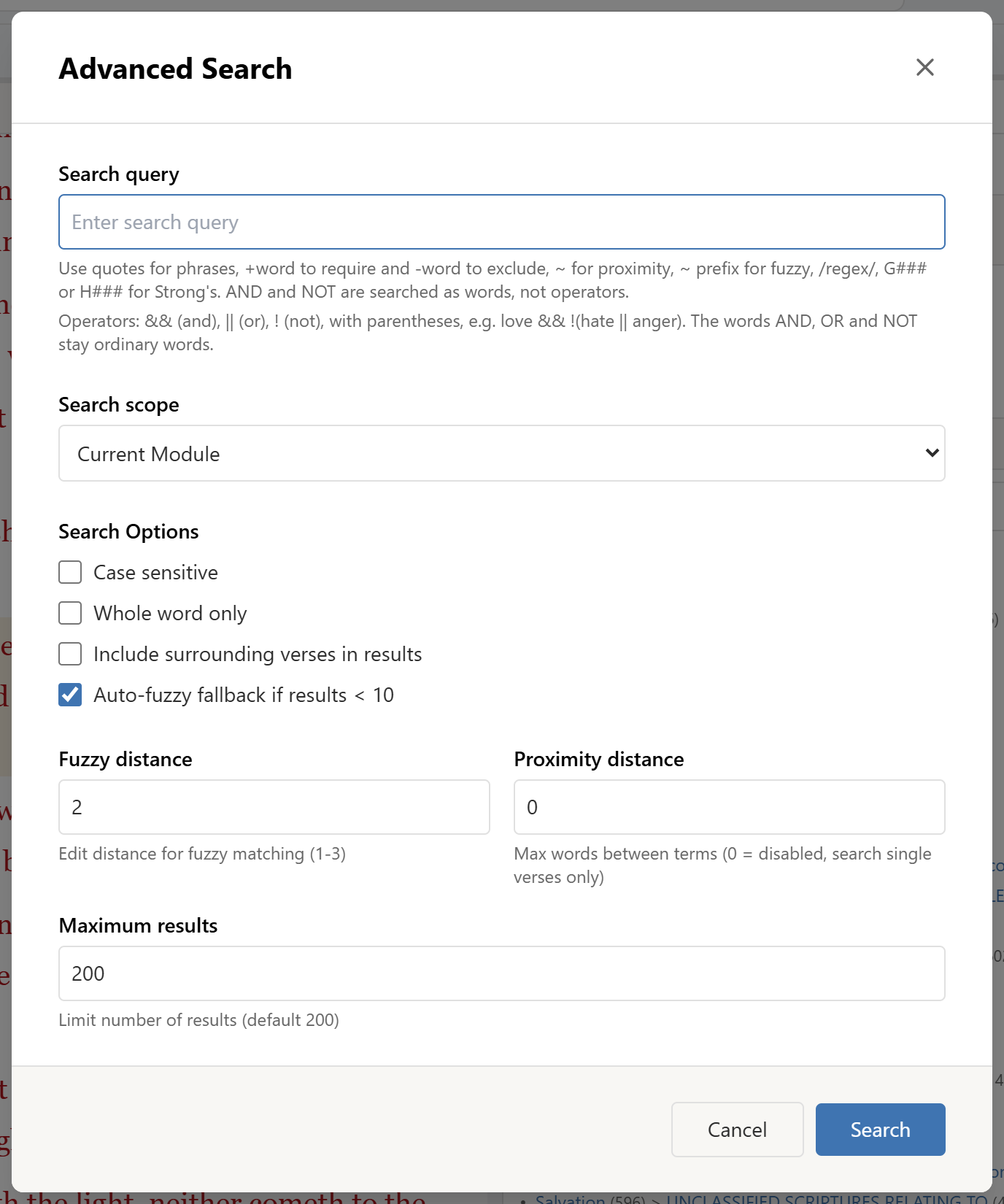
Press Ctrl+Shift+F, or open advanced search from the search bar.
Scope
| Scope | Searches |
|---|---|
| Current Module | The translation you're reading |
| All Open Modules | Everything currently open in the window |
| All Bible Translations | Every installed translation |
| All Modules (Bibles + Commentaries) | Translations and commentaries together |
| Specific Range (OT, NT, Gospels, etc.) | A section, one book, or a range of books and chapters |
| Search Within Last Results | Your previous results |
Options
- Case sensitive.
- Whole word only, so
lovedoes not matchbeloved. - Include surrounding verses in results.
- Auto-fuzzy fallback if results < 10: falls back to fuzzy matching when a query returns fewer than ten results.
- Maximum results, Fuzzy distance, and Proximity distance.
The query can use quotes for phrases, +word to require a word, -word to exclude one, and &&, ||, and ! with parentheses.
Ideas Search
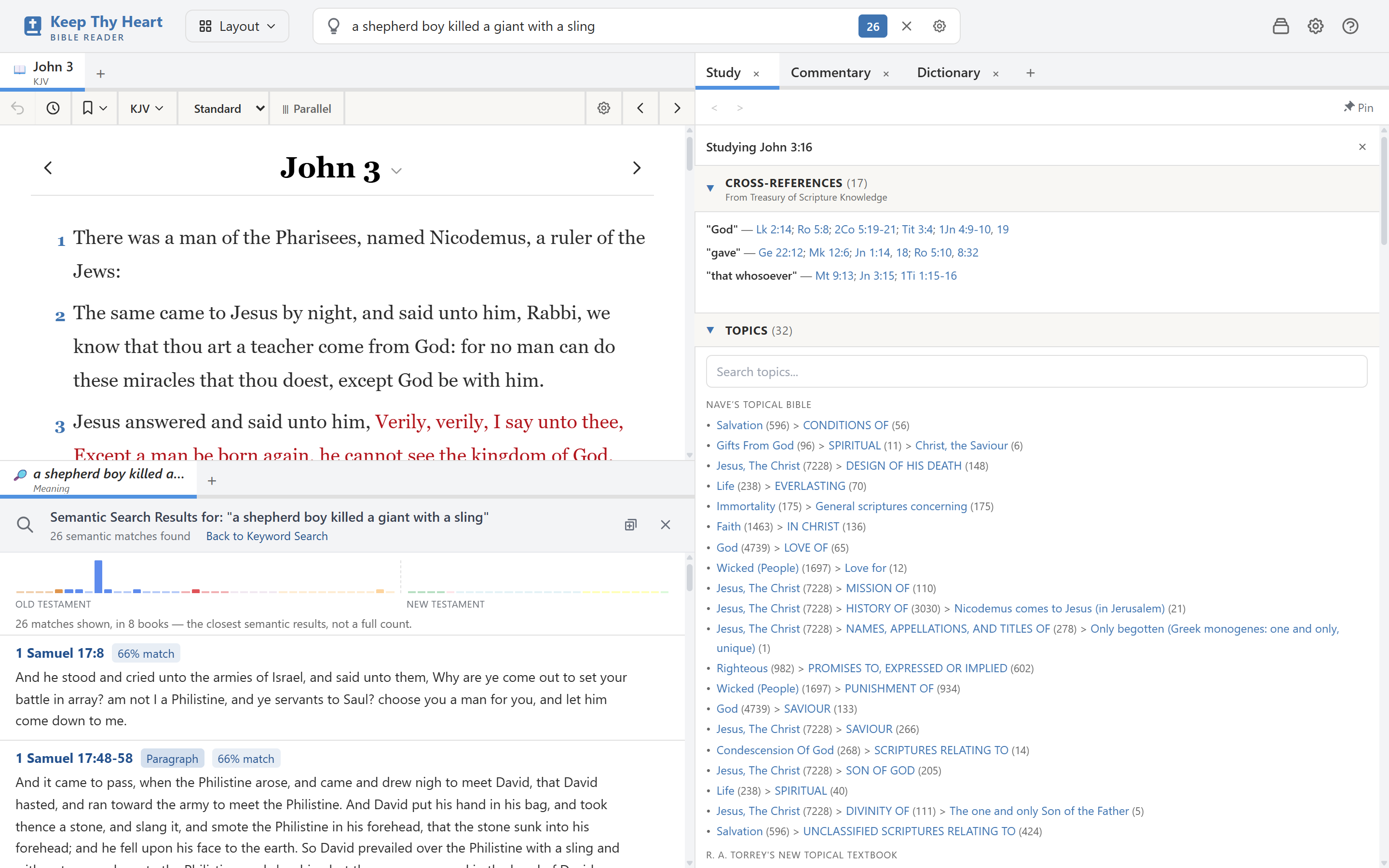
Ideas Search matches meaning rather than exact words. For example, "a shepherd boy killed a giant with a sling" finds 1 Samuel 17, although the passage uses different wording.
To use it, choose Ideas Search from the search type icon in the search bar, then search as usual. In the results header, Semantic Search re-runs a keyword search by meaning, and Back to Keyword Search returns to the keyword results. If a keyword search finds nothing, the app shows semantic results automatically and says so.
Ideas Search has two sources, chosen under Meaning search in the Search section of Preferences:
- Online (recommended), the default. Your search words are sent to an online search service. The service also sees your internet address, and daily usage limits apply. Web requests must be allowed. The first time you use it, a dialog (Meaning-based search uses an online service) explains what is sent; choose Agree and search to continue, or Not now. Your Bible reading, notes, and other data are not sent.
- On this computer. Uses the meaning search pack, which you install from the Feature packs tab of the Module Manager. It works without internet, and nothing is sent.
Choose Off to search by words only.
When online meaning search can't run (web requests are off, the daily limit is reached, or the service is unavailable), the results say so and show results from the installed pack if you have it, or keyword results.
Find in pane
Ctrl+F (Edit → Find in Pane) opens a find bar for the current pane. It works in any pane, including commentaries and notes.
- Enter and Shift+Enter go to the next and previous match.
- Match case turns on case-sensitive matching.
- Escape closes the find bar.
Strong's number searches
Search for a Strong's number (G26, H430) to find every verse where that original-language word occurs. See Study Tools.
Troubleshooting
If a module returns no results for text you know it contains, open its details in the Module Manager and choose Re-index.