Sessions & Layout
The window is yours to arrange. Panes can be split, dragged, resized, and pulled out into separate windows — and whatever you end up with is remembered.
Sessions
Your work is saved continuously as a session. A session holds the passage you're reading, your open tabs, the arrangement of panes, and your place in each of them.
You never save a session by hand. Close the app — even unexpectedly — and the next launch restores where you were.
This is why the app is comfortable to leave open across days of study: the state you build up isn't fragile.
The default arrangement
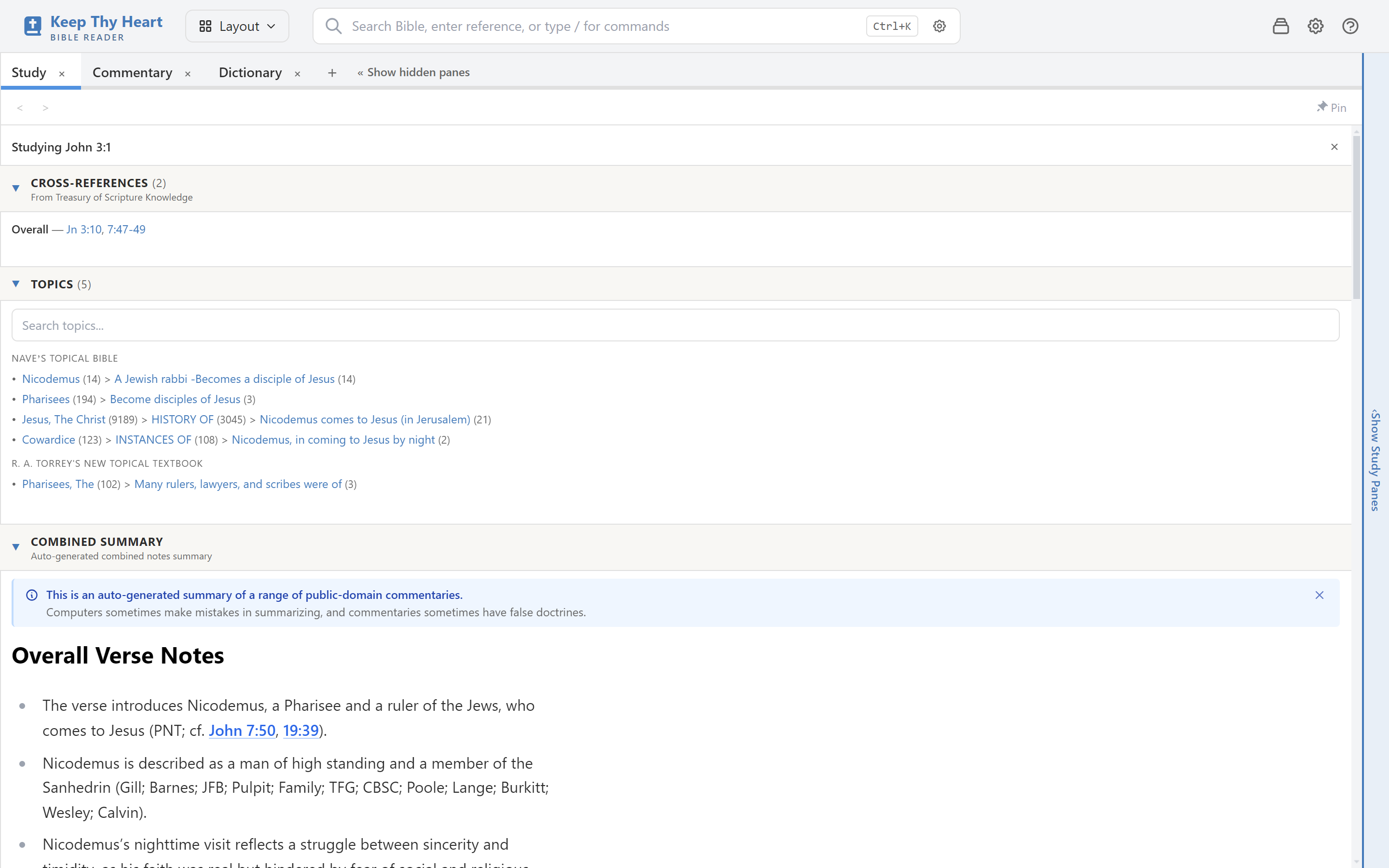
Out of the box, the Bible pane occupies the left of the window and the study pane the right. The study pane can be collapsed entirely with the control on its edge, giving the Bible text the full window for distraction-free reading, and expanded again when you need the tools back.
Rearranging panes
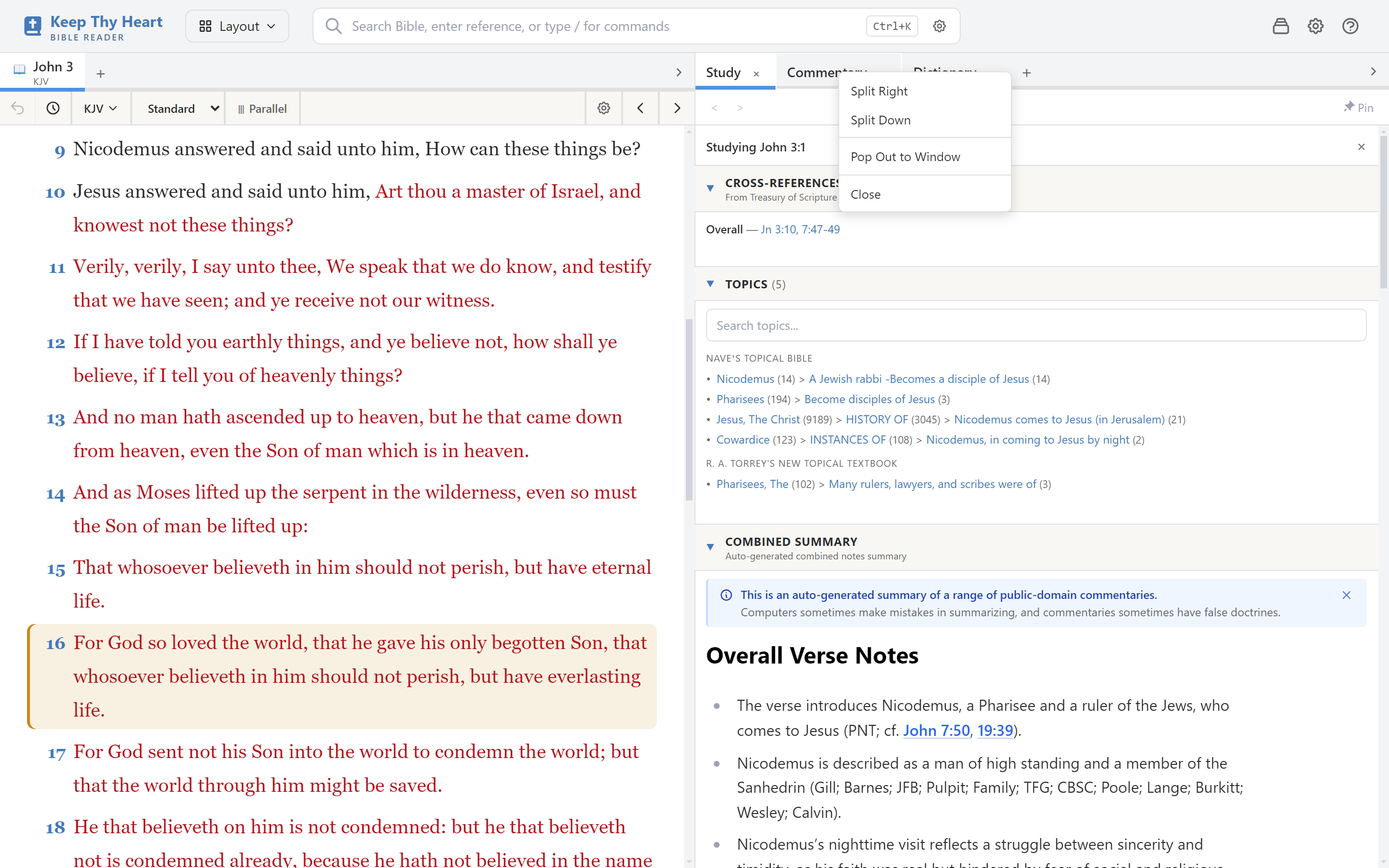
Right-click any tab for its options:
- Split Right — puts the pane in a new group beside the current one.
- Split Down — puts it in a new group below.
- Pop Out to Window — moves it into a window of its own.
- Close — closes the pane.
You can also drag tabs between groups, or drag one onto the edge of a group to create a new split there. Drag the dividers between groups to resize.
Built-in layouts
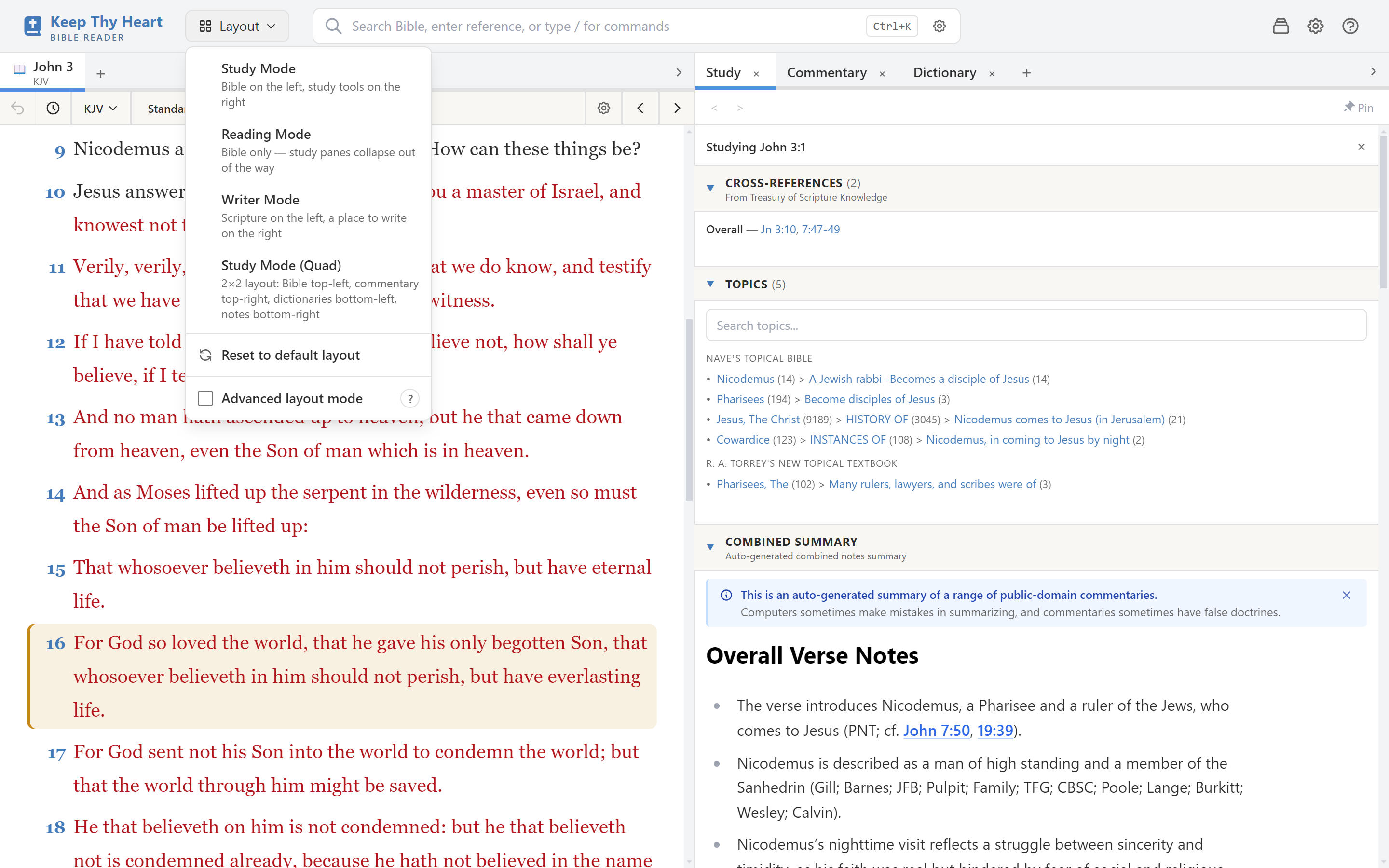
The Layout dropdown resets the window to one of three arrangements:
| Preset | Arrangement |
|---|---|
| Study Mode | Bible on the left, study tools on the right. The default. |
| Reading Mode | Bible only, with margins, everything else collapsed away. |
| Study Mode (Quad) | A 2×2 grid — commentary top-left, Bible top-right, dictionaries bottom-left, notes bottom-right. |
Applying a preset rearranges your existing tabs rather than discarding them, and offers an Undo if the result isn't what you wanted.
Reading Mode is worth knowing about specifically. Reading a whole book at a stretch is a different activity from studying a passage, and one click gets you a window suited to it.
Popping panes out
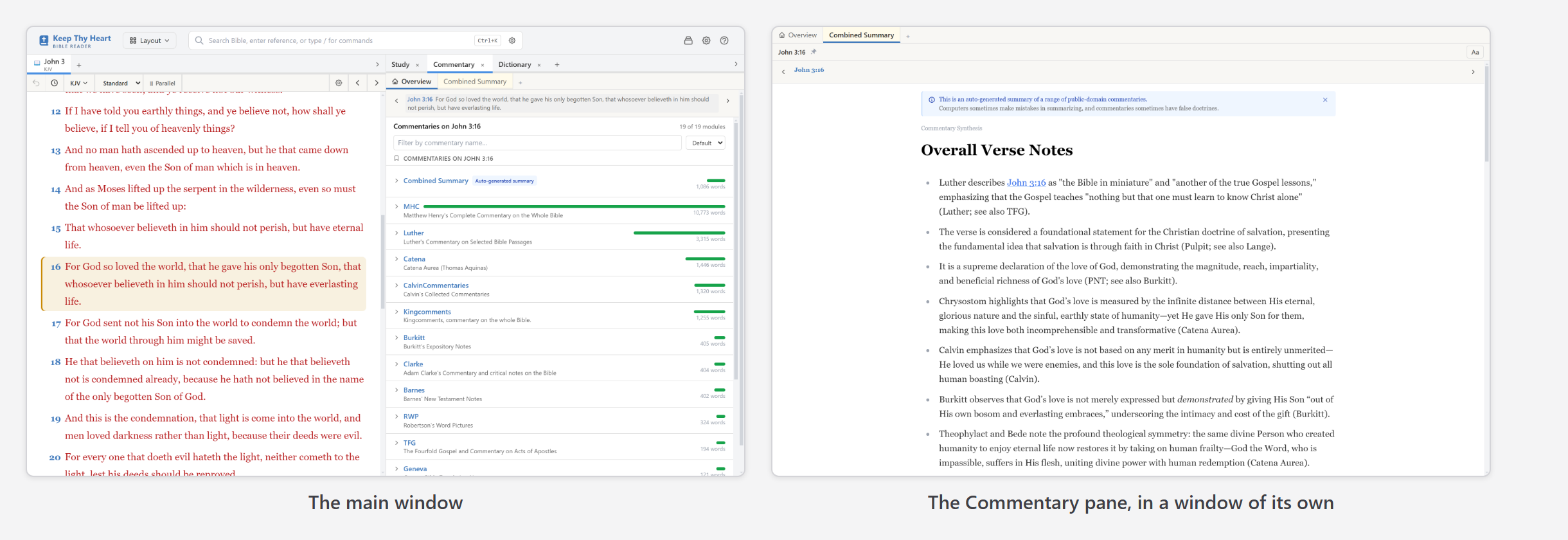
Pop Out to Window moves a pane into a standalone window, keeping its state — open tabs, loaded content, scroll position.
This is what makes a second monitor useful. Common arrangements:
- Bible on the main screen, commentary popped out to the second.
- A sermon document popped out, so you write on one screen and read on the other.
- Several translations in separate windows for detailed comparison.
Popped-out panes stay linked to the main window, so selecting a verse in the Bible pane still updates a detached commentary.
The sidebar
The sidebar on the left edge gives quick access to Home and Bookmarks without disturbing the arrangement of the study pane.
Zoom
The whole interface zooms: Ctrl++ in, Ctrl+- out, Ctrl+0 back to actual size. This scales everything at once, which is different from changing just the Bible text size — see Personalizing for that.
Starting over
If the layout gets away from you, pick a preset from the Layout dropdown. It's a reset button, and nothing you've written is affected — notes, highlights, and bookmarks are data, not layout.