Opening the App
Getting started is as simple as visiting a web address. There is nothing to download and no account to create.
Just open the site
Point any modern browser at the site address and the app loads. It works equally well in Chrome, Firefox, Safari, and Edge.
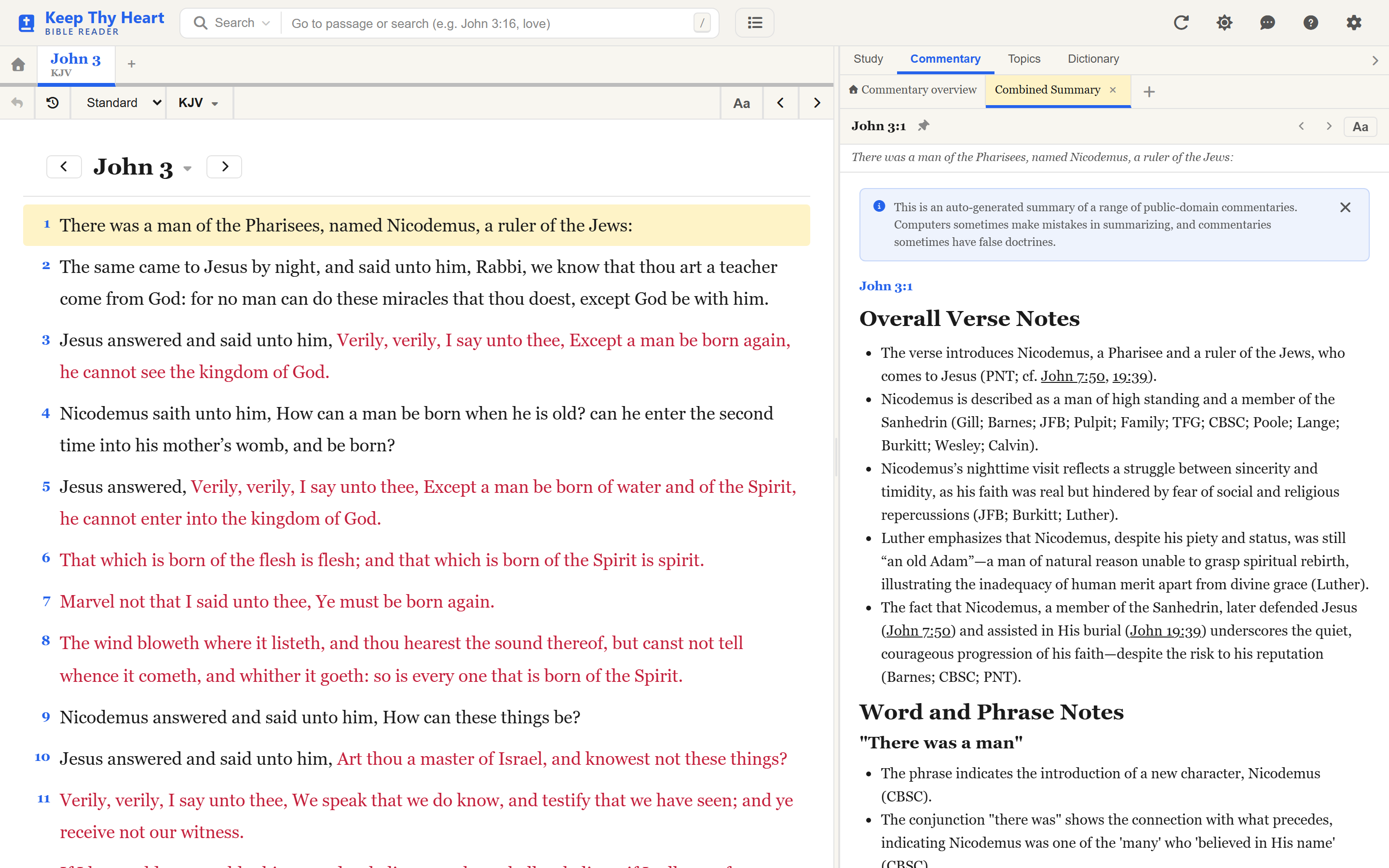
When the app finishes loading you land on the home screen, with a verse of the day and two buttons — Read Bible and Search. That is it; you are ready to go.
From here the natural next step is Your First Study Session.
If the site asks for a password
Keep Thy Heart Bible Reader can be run privately. When the site operator has turned authentication on, the first thing you see is a small page with a single Password box rather than the app itself.
This is one shared password for the whole site, not a personal account — there is no username, no sign-up, and no email address involved. Enter the password the site owner gave you and you are through to the app.
A few things worth knowing:
- After five wrong attempts the site stops accepting guesses from your address for fifteen minutes.
- Depending on how the operator configured the site, your browser either forgets the password when you close it, or remembers it for future visits.
- If the app ever drops you back at the password page unexpectedly, your session simply expired. Enter the password again and you will land back where you were.
Public sites usually have this turned off, in which case you will never see the password page at all.
Installing as an app on your device
The site also works as a Progressive Web App (PWA): you can install it onto your computer or phone so it opens in its own window, with its own icon, and no browser tabs or address bar around it.
You do not have to. The app works just as well in a normal browser tab. But if you use it often, installing makes it feel more settled. (Site operators can disable installation; if none of the prompts below ever appear, that is the likely reason.)
On a desktop computer
In Chrome or Edge, an install icon usually appears at the right-hand end of the address bar. Click it, confirm, and the app installs in a few seconds.
Once installed, the app opens in its own window and can be pinned to the taskbar or dock like any other program.
On a phone or tablet
Open the site in your browser, then use the Share or menu button and choose Add to Home Screen (or Install app, depending on the browser). Confirm, and a new icon appears on your home screen.
Keeping an installed app up to date
An installed app checks for new versions in the background. When one arrives you are asked whether to reload; accepting takes a moment and loses nothing.
If the app ever looks stale or misbehaves, there is a refresh button in the header, and on a phone you can pull down to refresh.
Your settings
You do not sign in, so your settings, tabs, and reading position are stored in this browser on this device. They are waiting for you next time you open the app here, but they do not follow you to a different browser or a different machine, and clearing your browser's site data clears them.
Ready to open a passage? Head to Your First Study Session.