Your First Study Session
A short tour of the app. In about five minutes you will open a passage, read commentary on it, and run both kinds of search. Once you have done this once, the rest of the guide will make sense.
1. Start at the home screen
When you open the app, the home screen greets you with a verse of the day. Click the verse itself to jump straight to it in context.
Underneath are two buttons: Read Bible, which opens the Bible in the reading area, and Search.
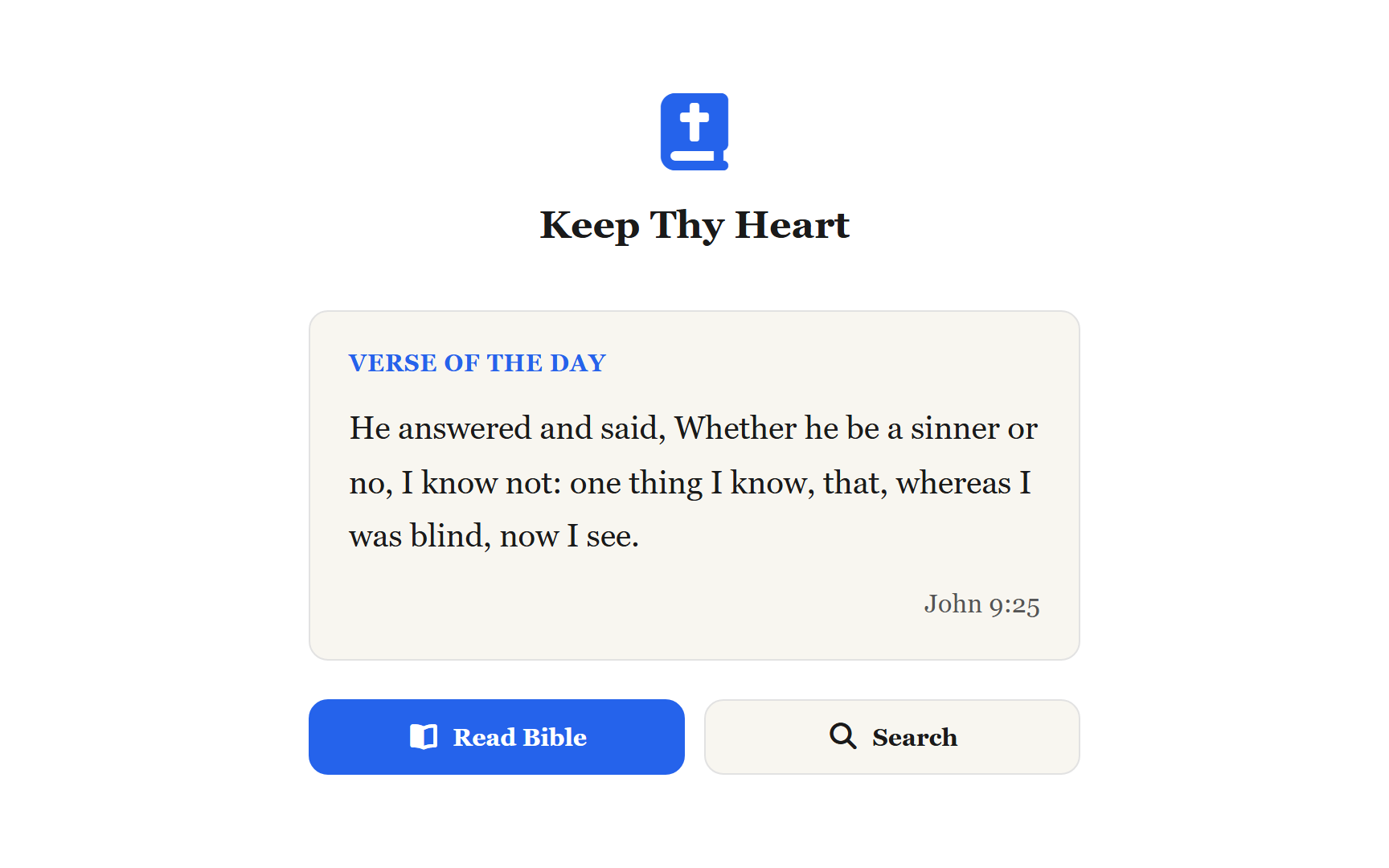
Click Read Bible to continue.
2. Pick a book and chapter
The book and chapter picker is how you jump to any passage. There are two ways to open it:
- Click the current reference at the top of the reading area (for example, "Psalm 23").
- Click the Table of Contents button — the list icon in the header.
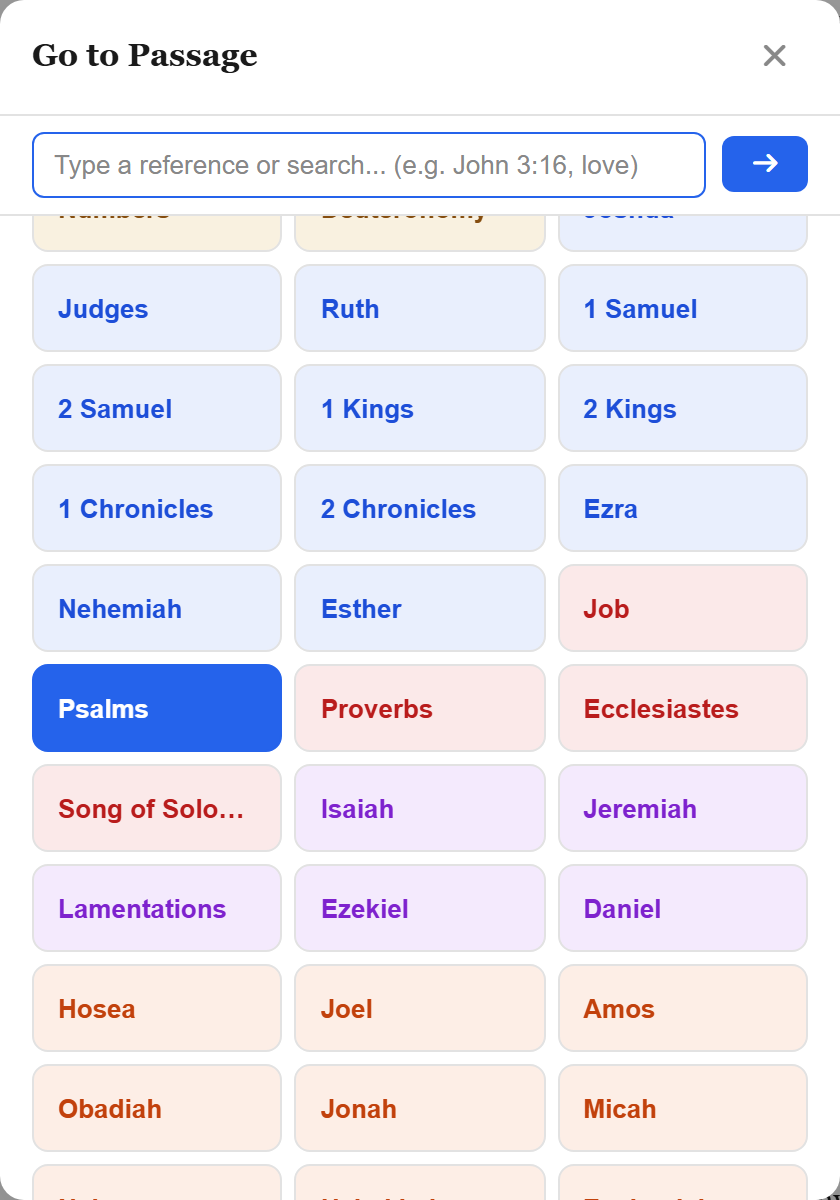
Choose a book, then a chapter, and the reading area updates.
If you would rather type, the search bar accepts references directly — John 3, Psalm 23, Gen 1:1-5. Reading the Bible covers every route.
3. Read a chapter
The chapter opens in a clean layout with verse numbers alongside the text. At the bottom of the chapter, ← Prev and Next → move you through Scripture, carrying you across book boundaries. The same chevrons sit at the right-hand end of the toolbar if you would rather not scroll.
4. Click a verse to study it
Click any verse to select it. The panels on the right — and, on a phone, the Study and Commentary screens — update to match, showing commentary, cross-references, topical entries, and original-language information for that verse.
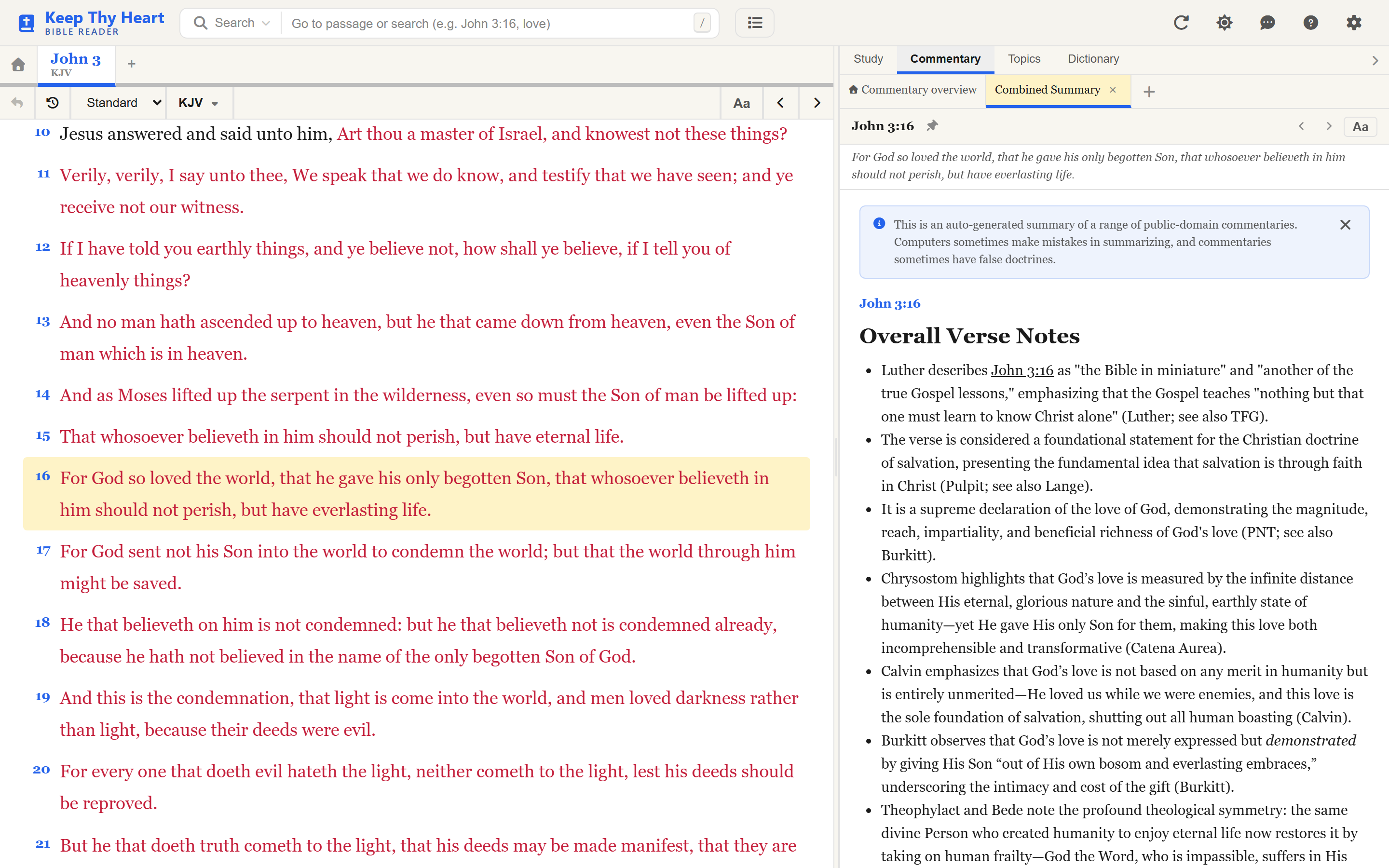
There is a lot here; Study Tools covers all of it.
5. Try both kinds of search
The search bar sits at the top of the screen. Press / or Ctrl+K (Cmd+K on a Mac) to jump to it from anywhere.
To its left is a button showing the current search mode. Click it and you can choose between Standard Search (a magnifying glass) and Ideas Search (a lightbulb).

Start with Standard Search and type something like the good shepherd. You get back every verse containing those words. Click a result to jump to it.
Now switch to Ideas Search and type something like a shepherd boy killed a giant with a sling. You do not need the exact words — the app matches meaning, and finds the parable you had in mind. The first Ideas search in a browser takes a moment while the model loads; after that it is quick.
Searching has the full story, including Strong's number lookups.
Where to next?
You have now done the core loop: open a passage, study it, search for more.
- Reading the Bible — navigation, translations, and display modes.
- Study Tools — commentaries, topics, and original-language tools.
- Personalizing Your Experience — themes, fonts, and text size.
The ? button in the header opens a brief in-app version of this guide whenever you need a reminder.