Copying & Sharing Verses
Opening the copy dialog
- Press Ctrl+C while reading, with no text selected. If text is selected, Ctrl+C copies the selection instead. On a Mac, this shortcut also uses Ctrl, not Cmd.
- Or right-click a verse in the reading area and choose Copy Passage.... On a phone, tap and hold the verse.
The Copy Verses dialog opens.
The copy dialog
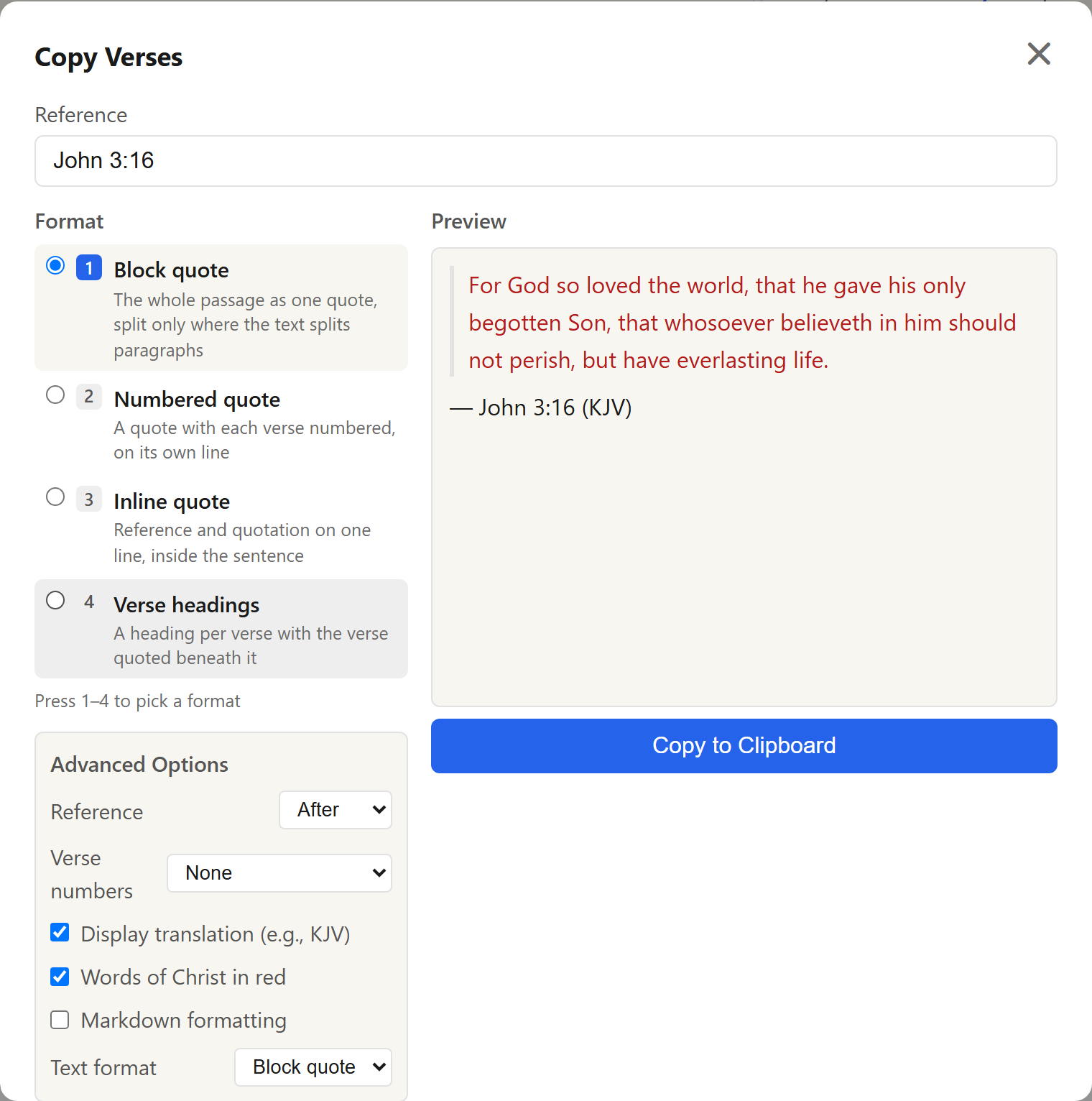
The dialog has a Reference box at the top. Below it, Format and Advanced Options are on the left and Preview is on the right. On a narrow screen, the preview is below the options.
Choosing what to copy
The Reference box holds the passage to copy. It starts with the selected verse. If you shift-clicked to select a range of verses, it starts with that range.
Type over it to copy something else:
- A verse or range in the current chapter:
5or3-10. - A chapter and verse in the current book:
3:16or3:14-18. - A verse or range in any book:
John 3:16,John 3:14-18. - A whole chapter or a range of chapters:
John 3,John 16-21. - A range across chapters:
John 16:1-17:5. - A whole book:
John.
Choosing a format
| Format | What it copies |
|---|---|
| Block quote | The whole passage as one quote, split only where the text splits paragraphs |
| Numbered quote | A quote with each verse numbered, on its own line |
| Inline quote | Reference and quotation on one line, for use inside a sentence |
| Verse headings | A heading per verse with the verse quoted beneath it |
Each format has a number. When the cursor is not in a text box, press 1–4 to pick a format.
Advanced Options
Which options appear depends on the format.
- Reference — where the reference goes: Before, After, or None.
- Verse numbers — In parentheses (16), Superscript ¹⁶, or None.
- Heading level — H1 to H6. Verse headings only.
- Quote marks — “”, ‘’, or None. Inline quote only.
- Room to comment under each verse — adds a line such as
[Comments for John 3:16]under each verse. Numbered quote and Verse headings only. - Display translation (e.g., KJV) — adds the translation abbreviation.
- Words of Christ in red — keeps red letters in the copied text, in translations that include red-letter data. The red letters appear when you paste into an app that accepts formatted text.
- Markdown formatting — writes the structure as Markdown: block quotes as
>lines and headings as#. The preview then shows the Markdown source. - Text format — Block quote or Inline. Inline copies the text without quote formatting. Not shown for Inline quote.
The dialog remembers the selected format, and each format's options, in this browser.
Preview and copying
The preview shows what will be copied. Click Copy to Clipboard; the button changes to Copied! and the dialog stays open. Press Enter to copy and close the dialog in one step.
If the browser blocks clipboard access, the dialog shows an error and stays open.