Using on Your Phone
The app works as well on a phone as on a laptop, but a small screen calls for a different shape. Instead of panels side by side, each part of the app gets its own screen, and you move between them with a bar at the bottom.
The Mobile Layout
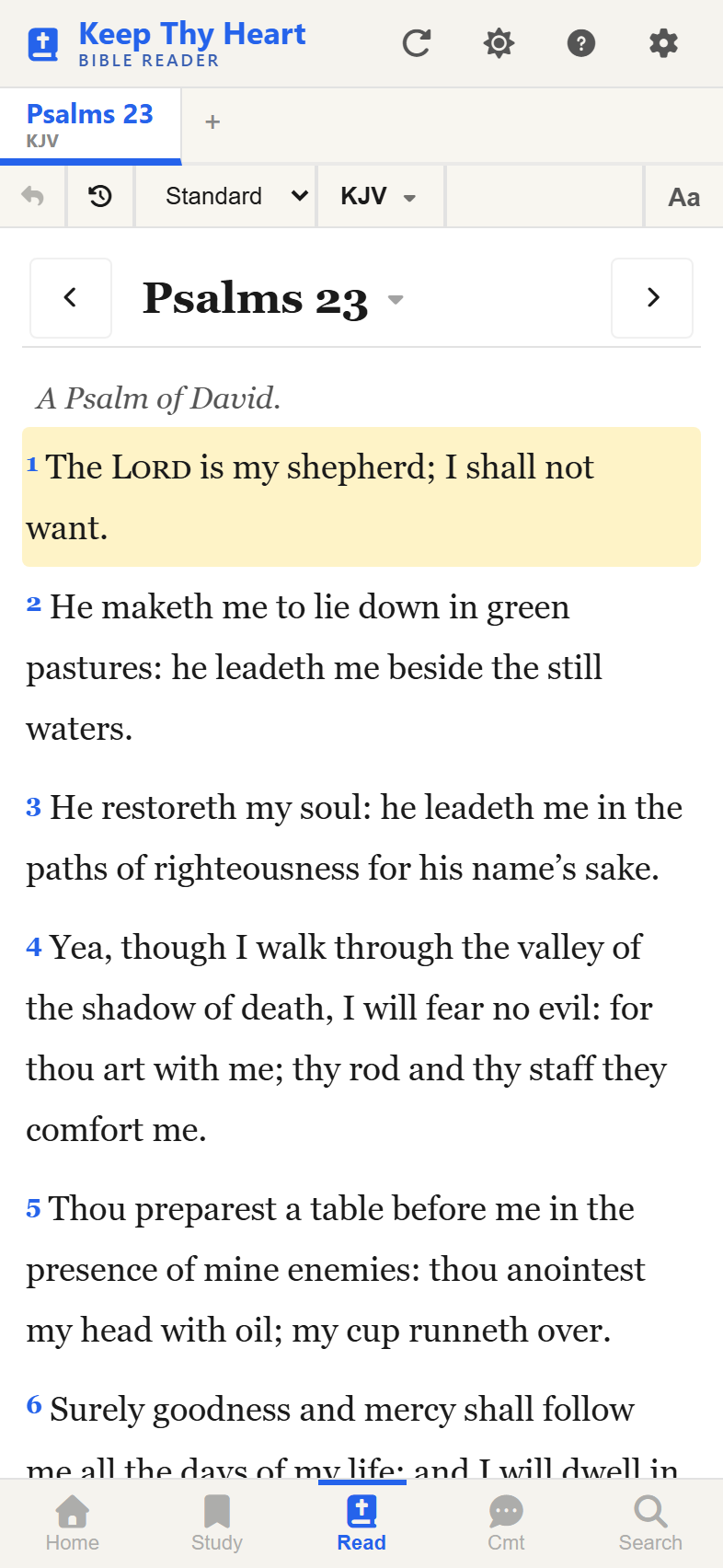
On a phone, the Bible text takes up almost the whole display. A slim header at the top holds the search bar and the settings and help buttons; a bottom navigation bar holds five tabs. You see one screen at a time, so whatever you are looking at fills the screen.
The Bottom Navigation Bar
Five tabs, left to right:
- Home — the welcome screen with the verse of the day.
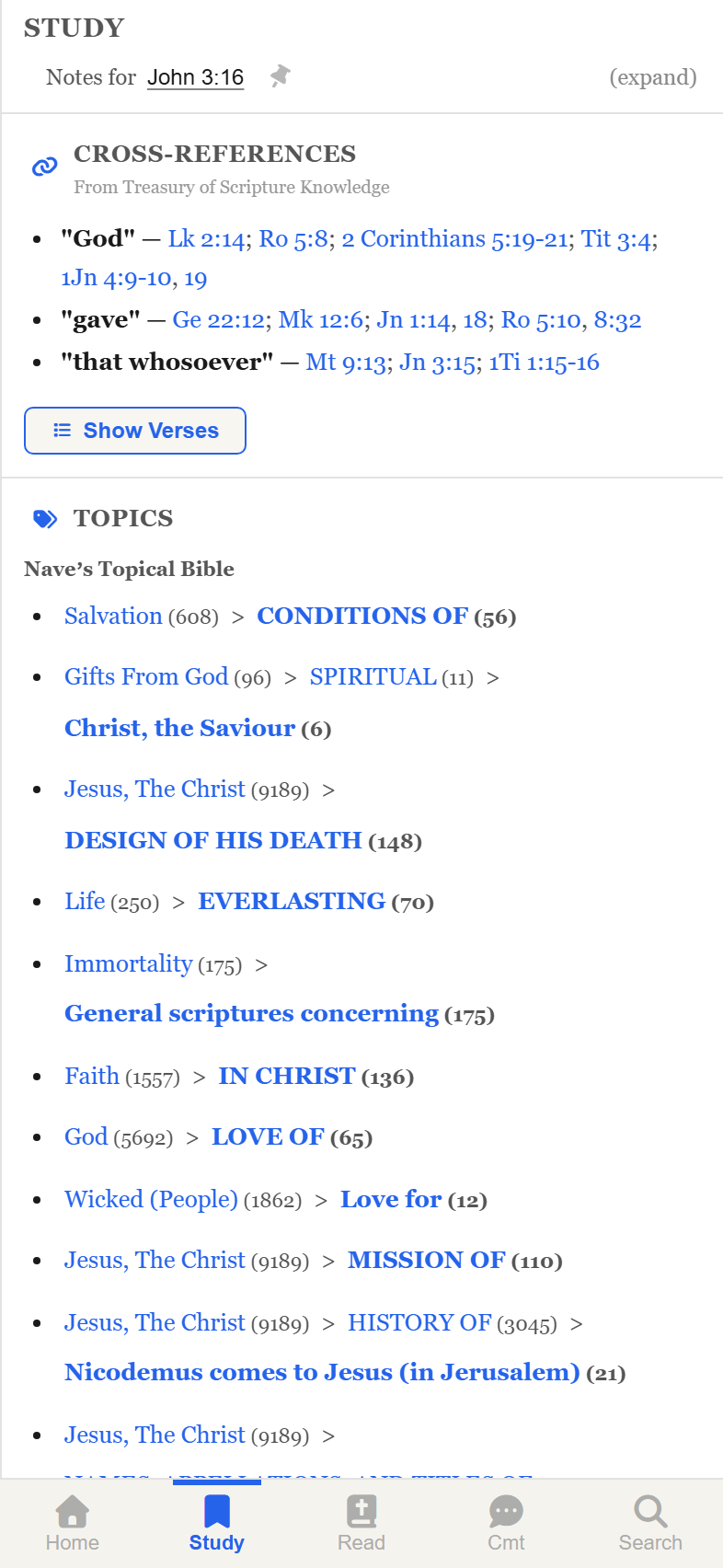
- Study — cross-references, topics, and interlinear words for the current verse.
- Read — the Bible text itself.
- Cmt — commentary for the current verse.
- Search — the search results screen.
Reading sits in the middle, where your thumb naturally lands. Tap a tab to switch; only one screen is visible at a time.

If you hold your phone in your left hand, turn on Left-handed mode to flip the bar so the busiest tabs fall under your left thumb. It is on the Theme tab in Settings — see Personalizing Your Experience.
The Study Screen
The Study tab shows what the app knows about the verse you last selected, as one scrolling page with three sections: Cross-References, Topics, and Interlinear. All three are open at once — nothing is hidden behind extra taps, just scroll. Browse All Topics at the foot of the Topics section opens the full topical browser.
At the top is a header naming the verse. Tap (expand) to see its full text, along with a pin for holding the screen on one verse while you read elsewhere, previous and next verse buttons, and a history dropdown of the verses you have been looking at.
The Commentary Screen
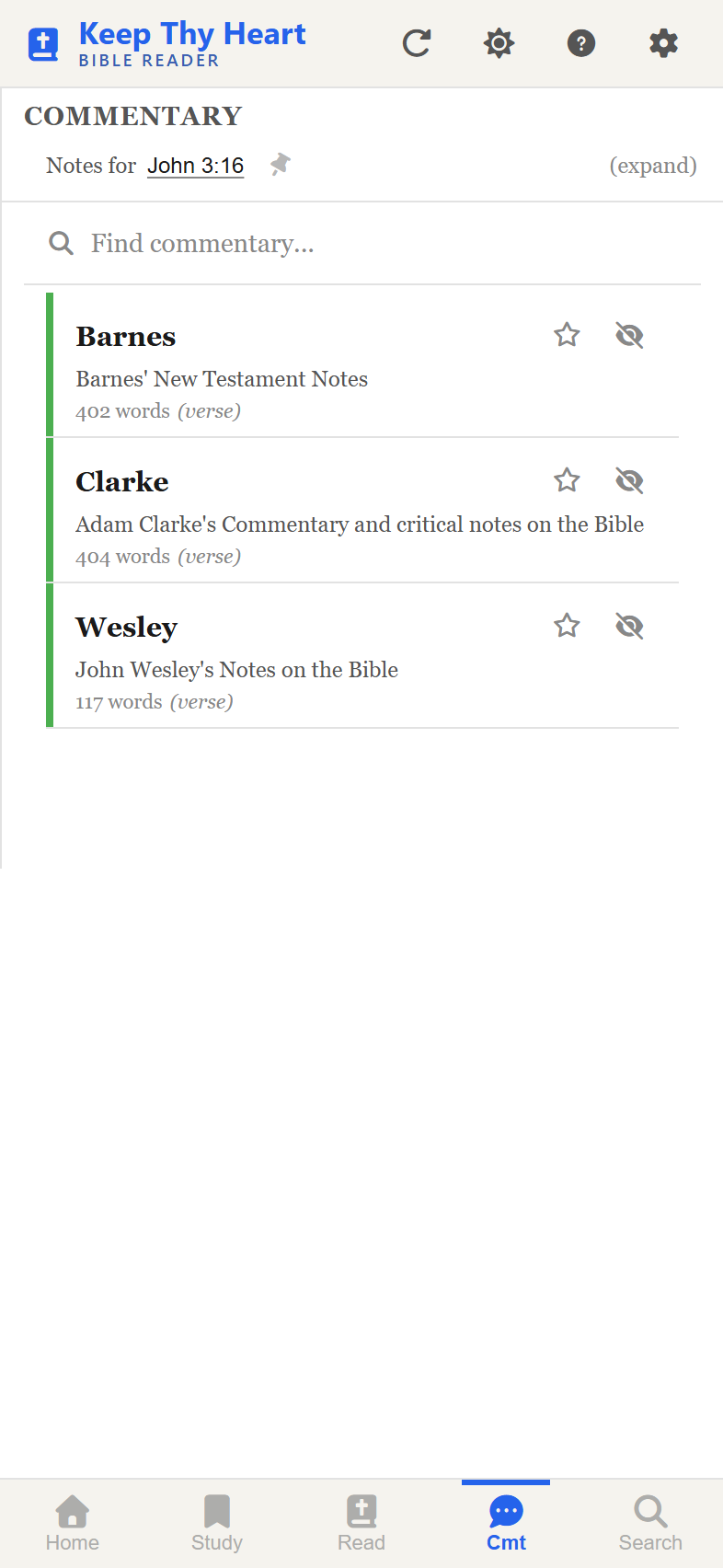
The Cmt tab shows the commentaries with something to say about the current verse, as a scrollable list of cards. Each card gives the commentary's name, a word count, and a preview; tap one to read the full entry, then swipe or tap back to the list.
The list has a Find commentary… box and three filters — Starred, All, and Muted. Tap the star on a card to keep that commentary at the top of the list in future, or mute one you never want to see.
Commentary comes from the server, so this screen needs a connection and says so when there isn't one.
Touch Gestures
Swipe between chapters. A horizontal swipe across the Bible text moves to the previous or next chapter. If it triggers too easily — or not easily enough — the Gestures tab in Settings adjusts how far a swipe must travel, and can turn the gesture off entirely.
Swipe between verses. The same gesture on the Commentary screen moves through verses rather than chapters, with its own threshold.
Pull to Refresh
If something looks stale, pull down from the top of the screen and release. The app reloads, the way a browser would. This matters most in installed-app mode, where there is no browser refresh button to fall back on.
Auto-Hiding Header
As you scroll down a chapter the header slides quietly out of the way, giving the text the whole screen. Scroll back up and it returns.
Installing on Your Phone
You can install the app to your home screen so it launches from its own icon with no browser bar, on both iPhone and Android. See Opening the App for the steps.
Once installed it fills the screen, launches like any other app, and — where the site operator has enabled downloads — keeps working without a signal. See Working Offline.