Working Offline
One of the app's quiet strengths is that it keeps working when your internet does not. Once a translation is on your device you can get on a plane, walk into a basement, or lose your signal, and the Bible is still there.
This is a per-site feature: the person running the site chooses whether to offer downloads at all. If the Offline tab is empty or the download buttons are missing, that is why.
What Offline Mode Does
With offline mode on, the app keeps a copy of your chosen translations on your device. Opening a chapter then reads from that copy instead of asking the server. Connected, you barely notice — chapters just load faster. Disconnected, you carry on reading.
A small Offline badge appears in the header when your device loses its connection, so you always know what you are relying on.
What works offline, and what does not
Offline copies are reading copies. Be clear on the line between the two:
| Works offline | Needs a connection |
|---|---|
| Reading any downloaded translation | Standard (keyword) search |
| Moving between chapters and books | Commentaries |
| Verse of the day | Cross-references and topics |
| Your settings, themes, and tabs | Dictionary and Strong's lookups |
Ideas Search is the exception worth knowing about. It runs inside your browser rather than on the server, so once its model and index have been fetched they stay cached and it can keep working without a connection.
The app tells you when something needs the network — "You're offline. This isn't available offline." — rather than showing an empty panel.
Turning Offline Mode On
- Open Settings with the gear icon in the header.
- Choose the Offline tab.
- Turn on Enable offline mode.
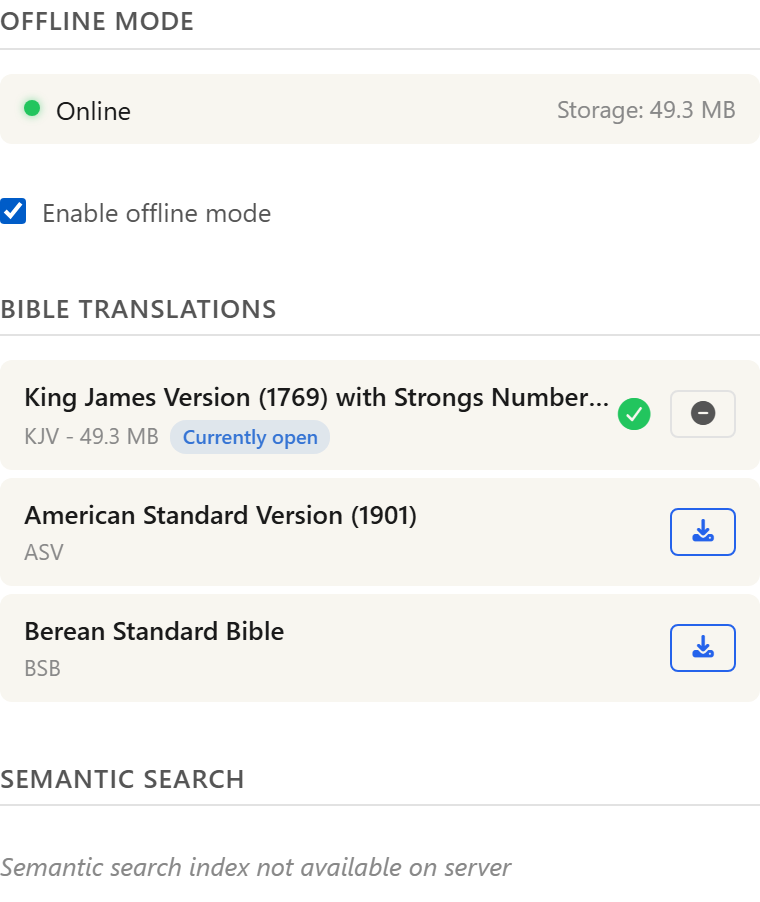
At the top of the tab a coloured dot shows whether you are currently Online or Offline, alongside a readout of how much space your downloads are using. Where the browser supports it, the app also asks permission to keep that data safe from automatic cleanup.
Downloading Translations
Below the toggle is a card for each Bible translation, showing its name, its size once downloaded, and a Download or Remove button. A card marked Currently open is one you are reading right now. While a download runs, a progress bar fills across the card.
There are two ways a translation ends up on your device:
- Automatic, lightweight copies. When you open a translation for reading, the app quietly fetches a compact copy in the background — the Bible text only, with the search index and interlinear data stripped out, which makes it roughly a sixth of the size. You do not have to do anything.
- Manual, full copies. Pressing Download on the Offline tab fetches the complete module rather than the stripped-down one.

Automatic cleanup
To keep your device from filling up, the app removes automatic copies you have not opened in about two weeks. Anything you downloaded yourself from the Offline tab stays until you remove it by hand.
The Ideas Search Index
Below the translations is a card for the Semantic Search Index — the data behind Ideas Search. The card shows its actual size, which is substantial; download it only if you want Ideas Search available offline.
Not every site offers it. When the server has no index, the section says Semantic search index not available on server in place of the card.
Removing Downloaded Data
Each downloaded card has a Remove button that deletes just that translation. Removing frees the space immediately, and you can download again whenever you like.
If the app itself ever fails to start, its error screen offers Clear Cache & Reload, which clears stored data wholesale and starts fresh. That is a recovery tool rather than a housekeeping one — for everyday tidying, use Remove on the individual cards.

What's Next
- Customising how the app looks: Personalizing Your Experience.
- Using the app on a phone, where offline reading matters most: Using on Your Phone.