Searching
The search bar is one of the most powerful parts of the app. It finds words, finds meanings, jumps to references, and looks up original-language words — all from the same box. This page takes each in turn.
The Search Bar
The search bar sits at the top of every screen. Click it, or press /, Ctrl+K, or Ctrl+G (Cmd on a Mac) to jump to it from anywhere. Each of those also selects whatever is already in the box, so you can type straight over an old query.
To the left of the box is a button showing the current search mode — a magnifying glass labelled Search, or a lightbulb labelled Ideas. Click it to open a small menu with the two choices:
- Standard Search — exact words.
- Ideas Search — meaning.

Whichever mode you choose is remembered for next time.
Standard Search
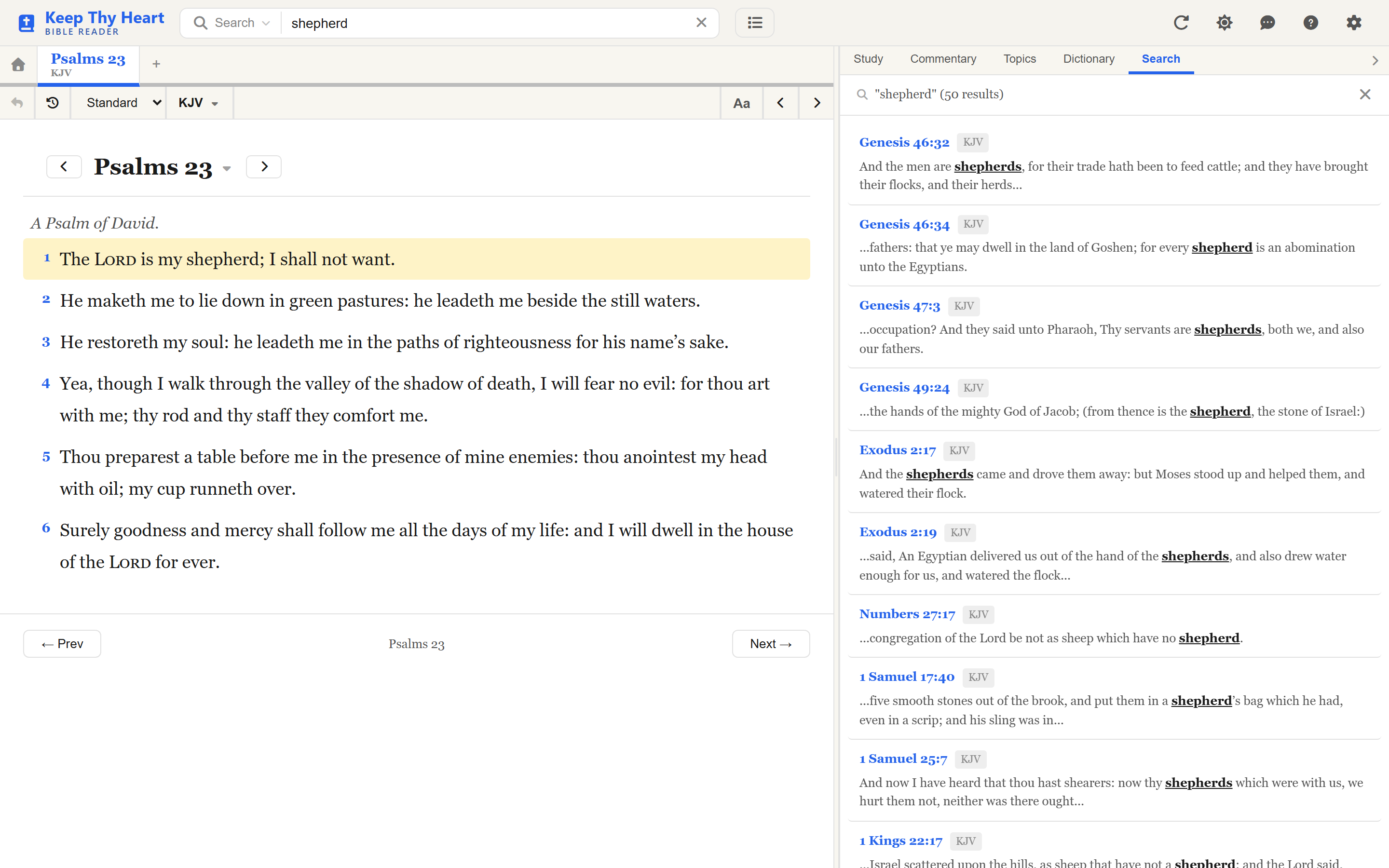
With Standard Search selected, typing a word or phrase finds every verse containing those exact words. Searching for shepherd returns every verse that uses it in the translation you are reading.
Results open in a panel beside the text. Each one shows:
- The verse reference (like "John 10:11")
- The translation it came from
- A snippet with your search words highlighted
Standard Search is fast and precise — the right choice when you know the words you want.
If nothing matches, the panel does not simply give up. It offers to run the same search in another translation, and to try it as an Ideas search instead.
Ideas Search
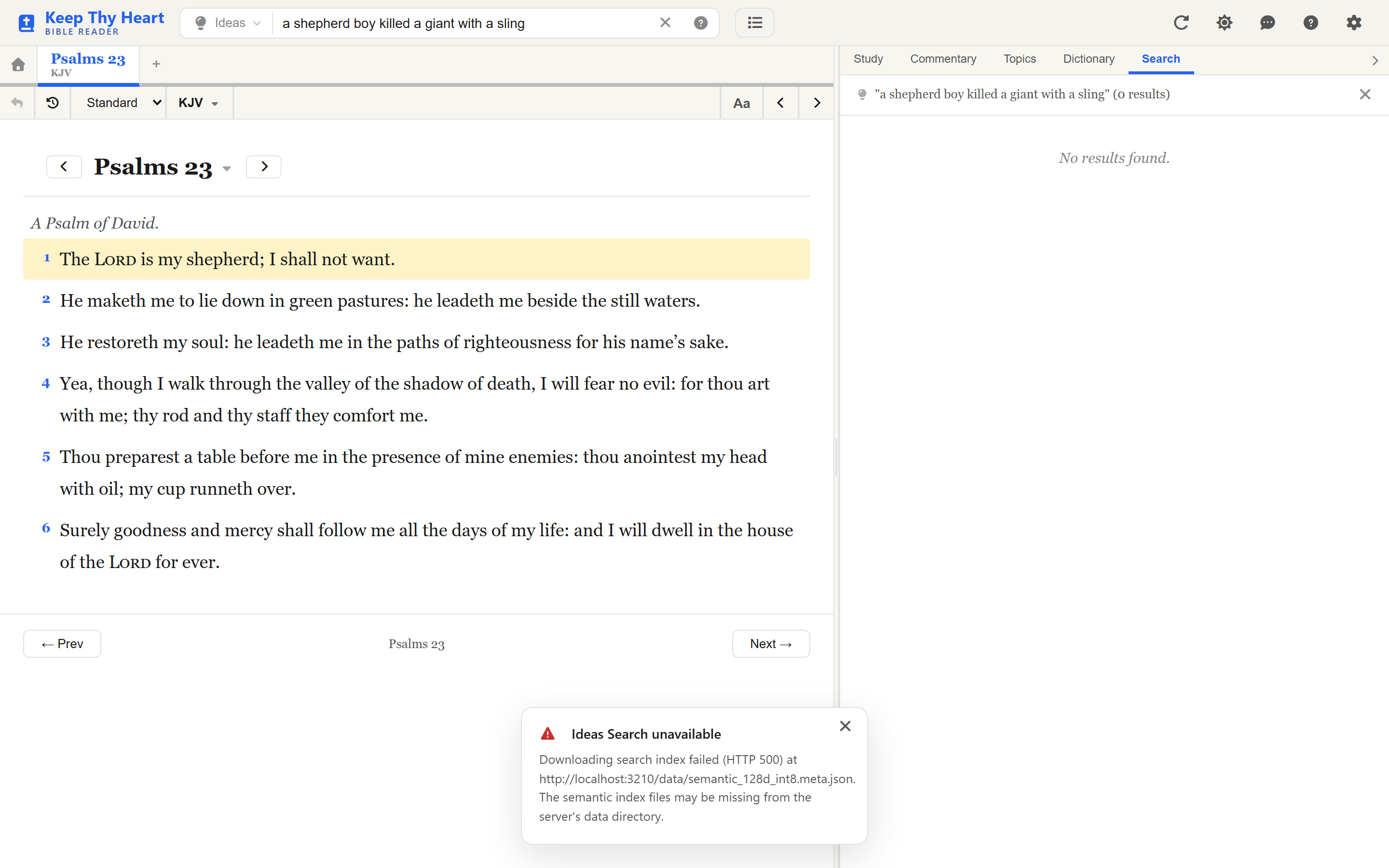
Sometimes you remember what a verse is about but not how it is worded. That is what Ideas Search is for. Switch the mode to Ideas and describe what you are looking for in plain English.
Typing a shepherd boy killed a giant with a sling surfaces David and Goliath in 1 Samuel 17, though none of those words appear in the passage. The app matches concepts, not letters.
It is at its best with:
- Half-remembered verses — "something about a lamp on a stand"
- Themes — "God's faithfulness in hard times"
- Questions — "what happens after death"
- Emotions — "overcoming fear and anxiety"
There is a small ? beside the search bar in Ideas mode that shows these examples any time you want them.
Two practical notes. Ideas Search runs inside your browser, using an AI model the app downloads the first time you use it — so the first search of a session pauses briefly while that loads, and later ones are quick. And because it is a per-site feature, some sites have it switched off; if the Ideas option is missing from the mode menu, that is why.
When an Ideas search also has exact-word matches, a small banner offers to show those instead — handy when the plain wording turns out to be what you wanted after all.
Jumping to a Reference
The search bar is also a "go to" box. Type something shaped like a reference — John 3:16, Romans 8, Gen 1:1-5, Ps 23 — and the app takes you there instead of searching. No special syntax, and no need to change modes first.
This is usually the fastest way to open a passage you already have in mind.
Strong's Number Search
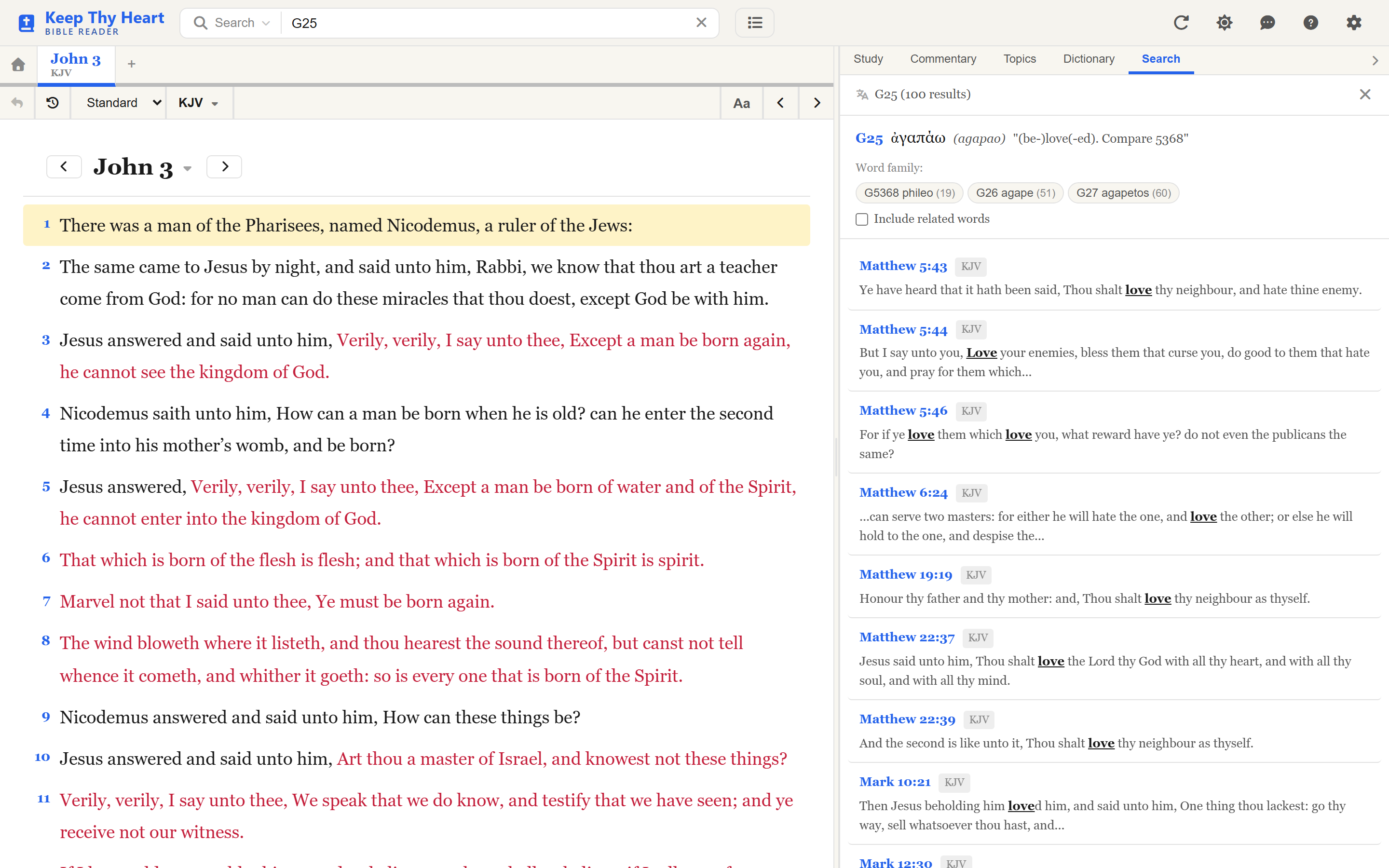
To study a particular Greek or Hebrew word, type its Strong's number into the search bar to find every verse that uses it. Greek numbers look like G25, Hebrew like H7225. The longer form strongs:G25 works too.
The results show:
- A word header with the number, the original word, its transliteration, and a short gloss.
- The list of verses where that word appears.
- A row of word family pills — related words built on the same root. Click a pill to search that word instead.
- An Include related words toggle, which expands the search across the whole family at once. Useful for tracing a concept through all its forms — the verb agapao, the noun agape, and the adjective agapetos together.
You can also reach this from Study mode: click any Strong's number under an interlinear word and choose Search all occurrences in the popup. See Study Tools.
Working with Results
However you searched, the results panel behaves the same way:
- Click a result to go to it in the current tab.
- Ctrl+click (Cmd+click) to open it in a new Bible tab, keeping your place.
- Long result lists load in batches — Show more results fetches the next batch, or Load all fetches the rest at once.
- Close the panel with the ✕ to return to the study and commentary panels.
Searching needs the server, so it is unavailable while you are offline; the panel says so rather than returning nothing.
What's Next
- Explore a verse once you have found it: Study Tools.
- A refresher on navigating Scripture: Reading the Bible.
- Searching on a phone works the same way — see Using on Your Phone.