Study Tools
Beside the Bible text sits a second panel holding everything that helps you dig into what you are reading. It updates as you move through Scripture, so the material for the verse in front of you is simply there.
The Study Panel
On a desktop the panel occupies the right-hand side of the window, with tabs across its top:
| Tab | What it holds |
|---|---|
| Study | Cross-references, topics, a combined commentary summary, and interlinear words — all for the selected verse |
| Commentary | Full commentary entries, one tab per commentary |
| Topics | The topical-index browser, searchable by name |
| Dictionary | Dictionary and Strong's entries |
Drag the divider between the Bible and the panel to change how the space is split, or click the › at the right of the tab row to collapse the panel entirely and give the whole window to Scripture. A Search tab joins the row whenever a search is open.
On a phone the same material is reached from the bottom navigation bar instead. See Using on Your Phone.
Everything below follows the verse you have selected — click a verse in the reading area to move the whole panel to it.
The Study Tab
The Study tab is a single scrolling page of collapsible sections — Cross-References, Topics, Commentary Combined Summary, and Interlinear. They all start folded; click a heading to open one, and it stays open as you move around.
At the top is a pin (the thumbtack). Normally the Study tab follows your reading; pin it and it stays on the verse it is showing while you go and look at something else. A banner tells you what it is pinned to, with a Sync to button to bring it back to your current passage. Click the pin again to release it.
Cross-references
Cross-references list other verses related to the one you are reading — passages that quote it, echo it, or take up the same theme. They come from the Treasury of Scripture Knowledge, and give you a quick map of where a verse connects across the rest of the Bible.
Each entry is a reference with a short snippet of the verse. Click one to jump there, or hover to preview it without leaving your place. Show Verses expands the full text of every reference at once.

Topics
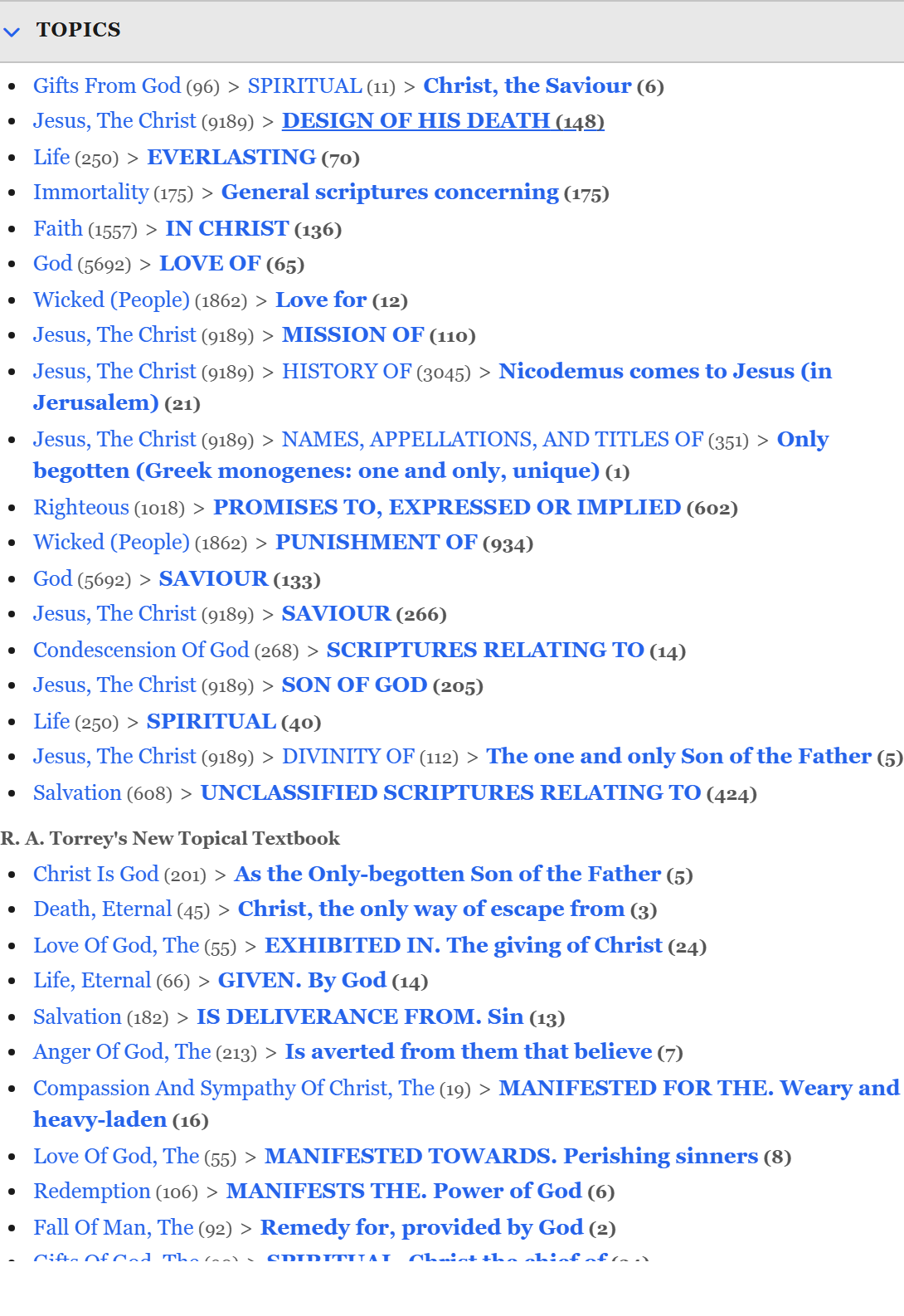
Topics are entries from topical indexes such as Nave's Topical Bible — long-standing reference works that organise Scripture by subject. The section lists every topical entry that includes your selected verse; click one to open it in the Topics tab.
Where the site has entity data enabled, an Entities group appears alongside: the people, places, themes, and objects a verse mentions. That is a different kind of index — topics group verses by subject, entities by who or what.
Commentary Combined Summary
The third section is the Commentary Combined Summary — a single condensed summary drawn from a range of public-domain commentaries, so you can take in the gist of what the commentators say without opening each one.
It carries a notice worth reading: the summary is generated automatically. Computers make mistakes when summarising, and the underlying commentaries themselves sometimes hold views you would not agree with. Treat it as a signpost toward the full entries in the Commentary tab, not as a source in its own right. Open in Commentary takes you to those.
You can dismiss the notice once you have read it.
Interlinear
The last section shows the original Greek or Hebrew behind the verse, word by word, with Strong's numbers. This is the same data that Study display mode puts inline with the English text.
The Commentary Tab
A commentary is a verse-by-verse set of notes written by a pastor or scholar. The app can hold several open at once, and they follow your reading without any action on your part.
The overview tab
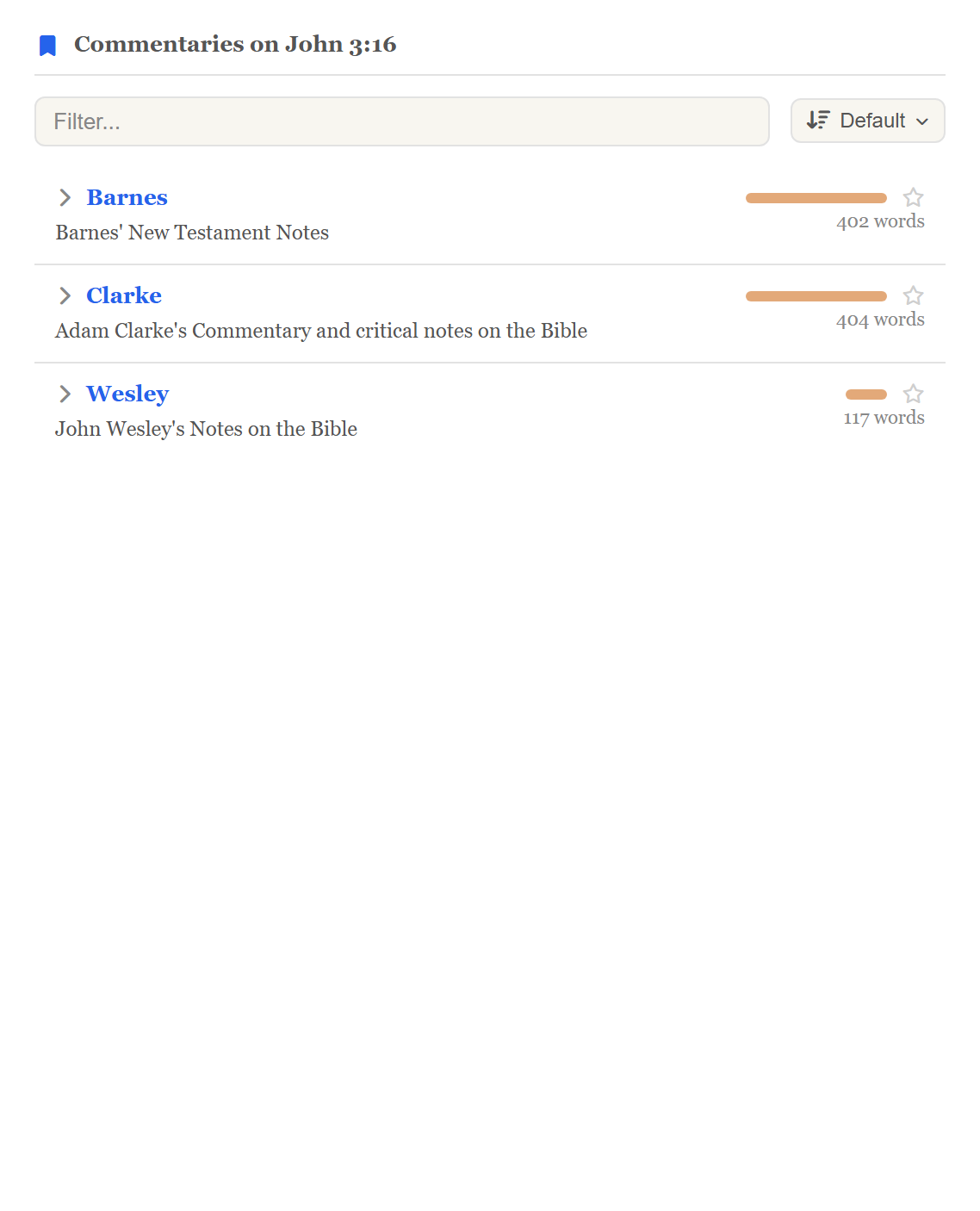
The tab opens on the Combined Summary described above. The first tab in the row, marked with a house icon, is Commentary overview: it lists every commentary with something to say about the selected verse, each with a preview and a word count, so you can see what is available before committing to one.
Click an entry to expand it and read it in place, without leaving the list.
You can filter the list by name and sort it — A–Z, longest first, shortest first, random, or the default order. A star on each row pins that commentary to the top of the list for future verses. Expanding an entry reveals two more controls: Mute, which hides a commentary you never want to see, and Add to tabs, which opens it in a tab of its own.
Reading one commentary
Add to tabs gives a commentary its own tab beside the overview; drag the tabs to reorder them.
When a commentary has nothing for the exact verse you are on, the panel offers Previous verse and Next verse buttons that jump to the nearest verse it does cover, so you are never left staring at a blank page.
Pinning a commentary
Like the Study tab, each commentary tab can be pinned to a passage with the thumbtack — useful for keeping Barnes on Romans 8:28 while you chase down the cross-references it mentions. A pinned tab shows a small thumbtack indicator and a Sync to button for catching it back up. Tabs pin independently.

References inside commentary text
Commentaries are full of Bible references — "compare John 3:16", "see Rom 8:28". The app detects these and turns them into links.
- Click a reference to move the Bible panel to that verse.
- Hover to see a preview of the verse text without leaving your place.
- Ctrl+click (Cmd+click) to open it in a new Bible tab.
The Topics Tab
The Topics tab is the full topical browser.
Browsing from a verse. Clicking a topic in the Study tab opens its entry here — every verse the topic gathers, plus where it sits in the hierarchy.
Searching by name. Search All Topics lets you type a word like prayer or mercy and see every matching topic.
Hierarchy and breadcrumbs. Topical indexes are hierarchical: a large subject like "Faith" has sub-topics beneath it. A breadcrumb trail at the top of each entry shows where you are; click any part of it to move up. Sub-topics can be filtered and sorted A–Z, and long verse lists load in batches.
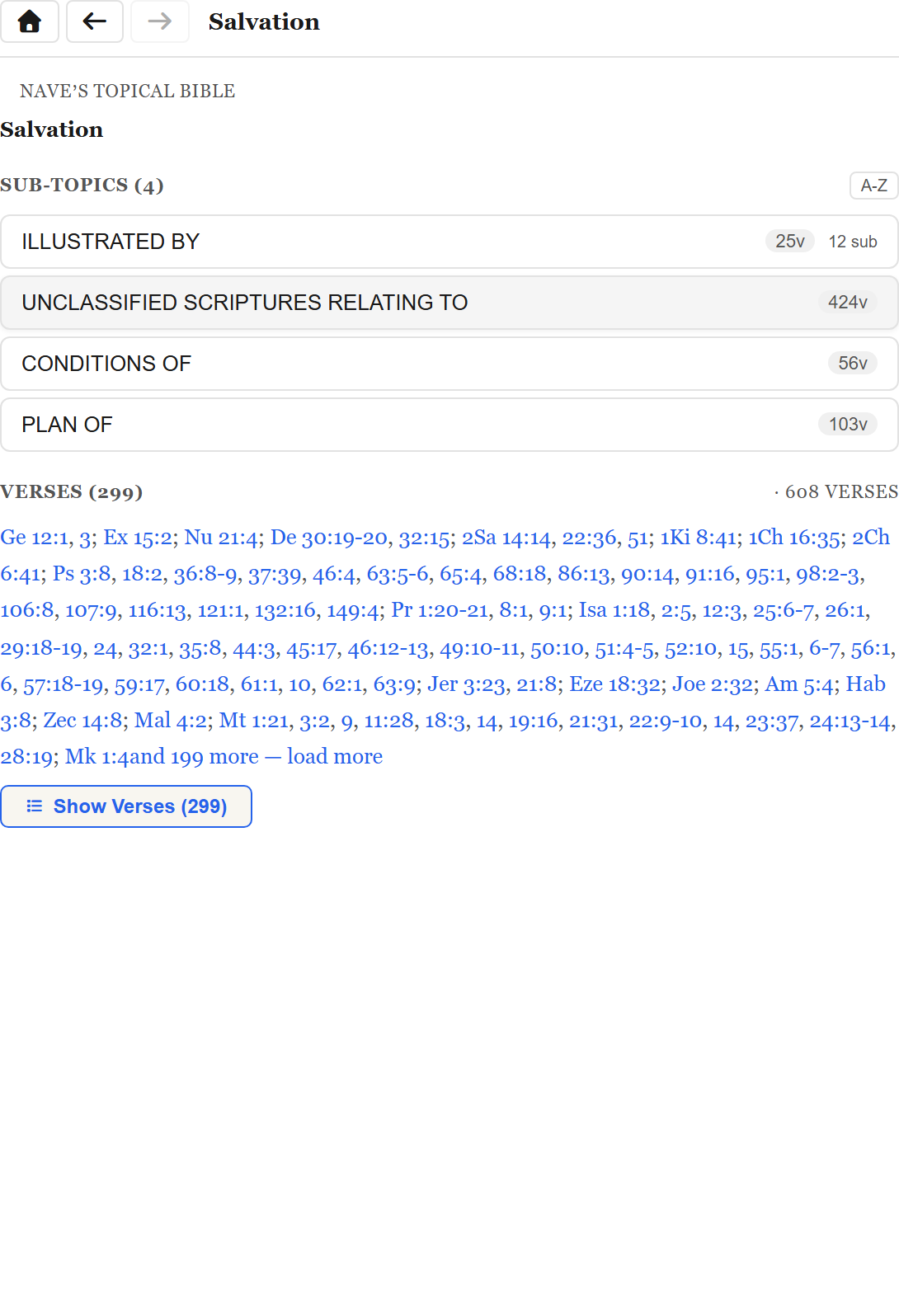
Entities. Where the site has entity data enabled, this tab also holds cards for people, places, themes, and objects. An entity card gives a short profile, the topical entries that mention it, related entities, and the verses it appears in — all clickable.
Dictionary and Strong's Numbers
To reach the Greek or Hebrew behind an English word, the app uses Strong's numbers — a system giving every original-language word a unique ID. Greek numbers start with G (G25), Hebrew with H (H7225).
Seeing the original words
Strong's numbers appear when the reading area is in Study display mode — see Reading the Bible — and in the Interlinear section of the Study tab. Each English word is shown with its original word, a transliteration, and the Strong's number.
Not every translation carries interlinear data. When one does not, the app says so rather than showing an empty column.
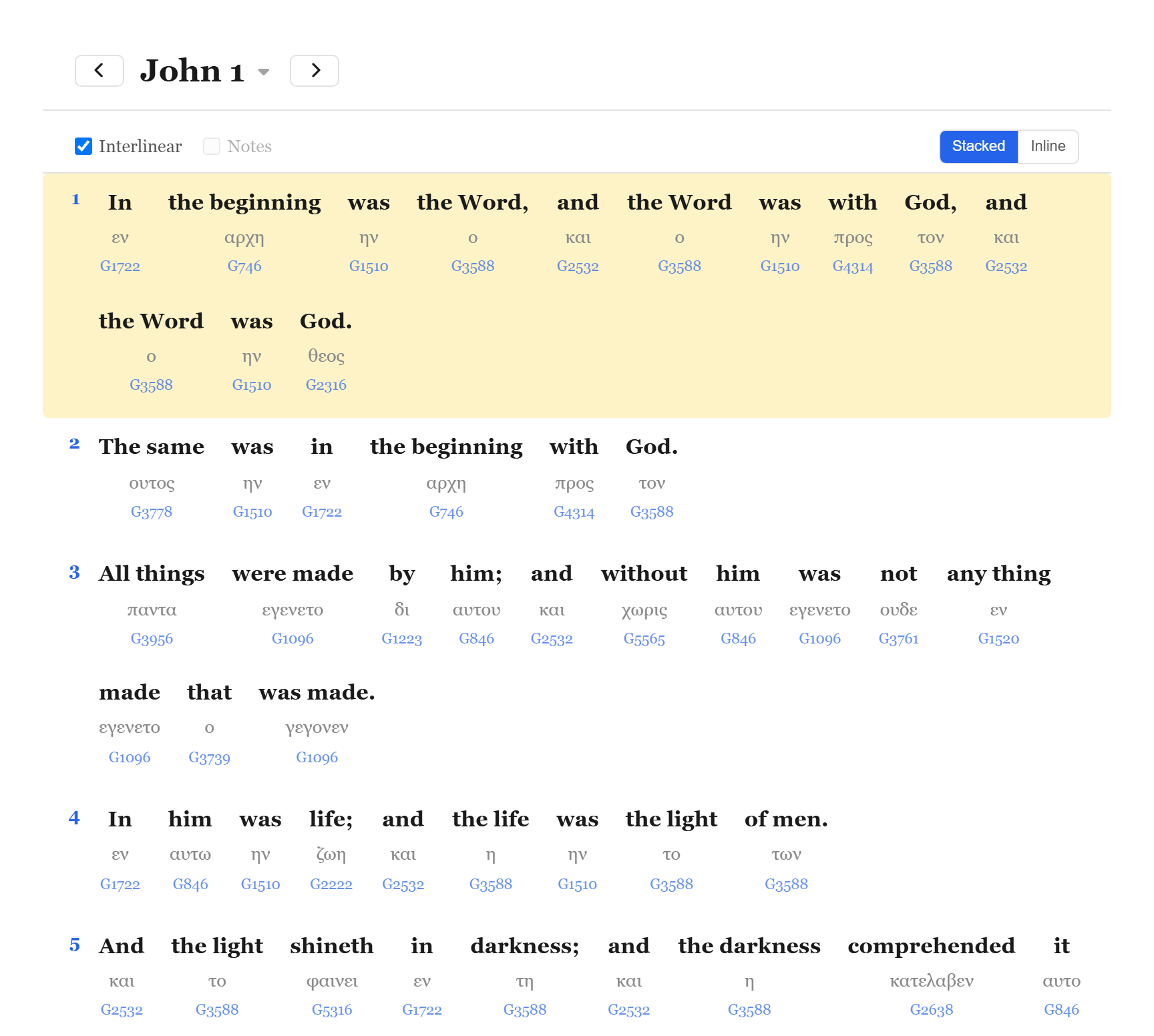
Tooltip versus popup
Strong's numbers are clickable, and there are two levels of detail.
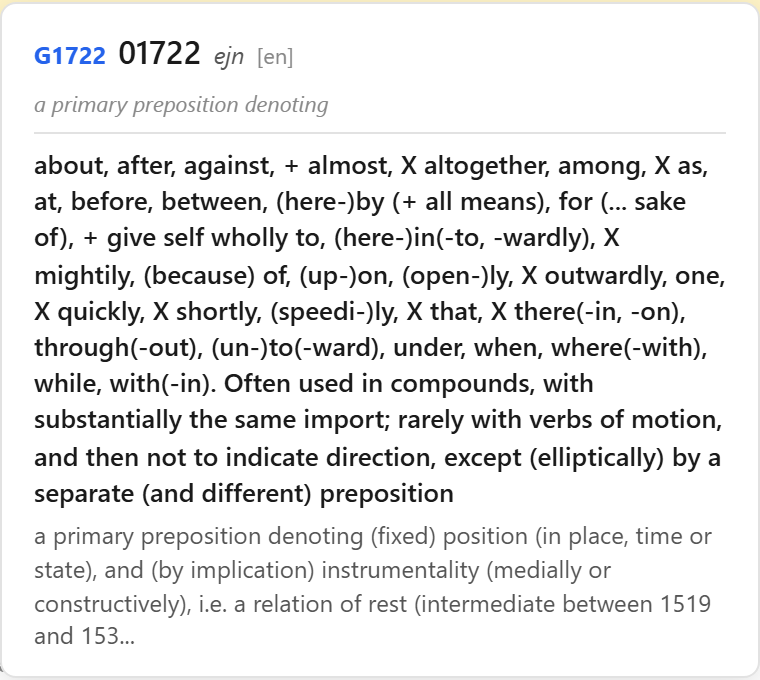
Hover one and a tooltip appears with the short version — the word, its transliteration, and a brief definition. Made for glancing at while you read.
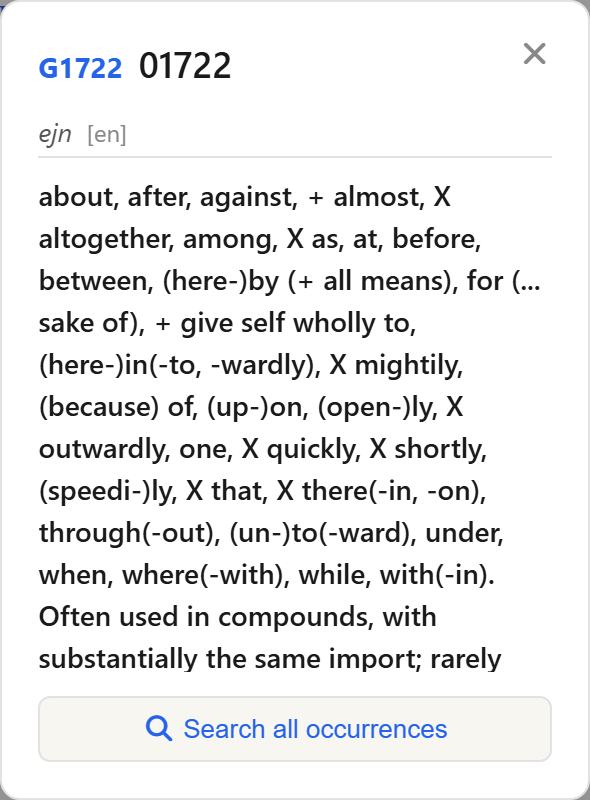
Click one for the full entry: part of speech, the longer definition, etymology, and the rest. Where that entry appears depends on your screen. On a desktop it opens in the Dictionary tab of the study panel, so it stays put while you keep reading. On a phone it opens as a popup over the text.
Word families and finding every occurrence
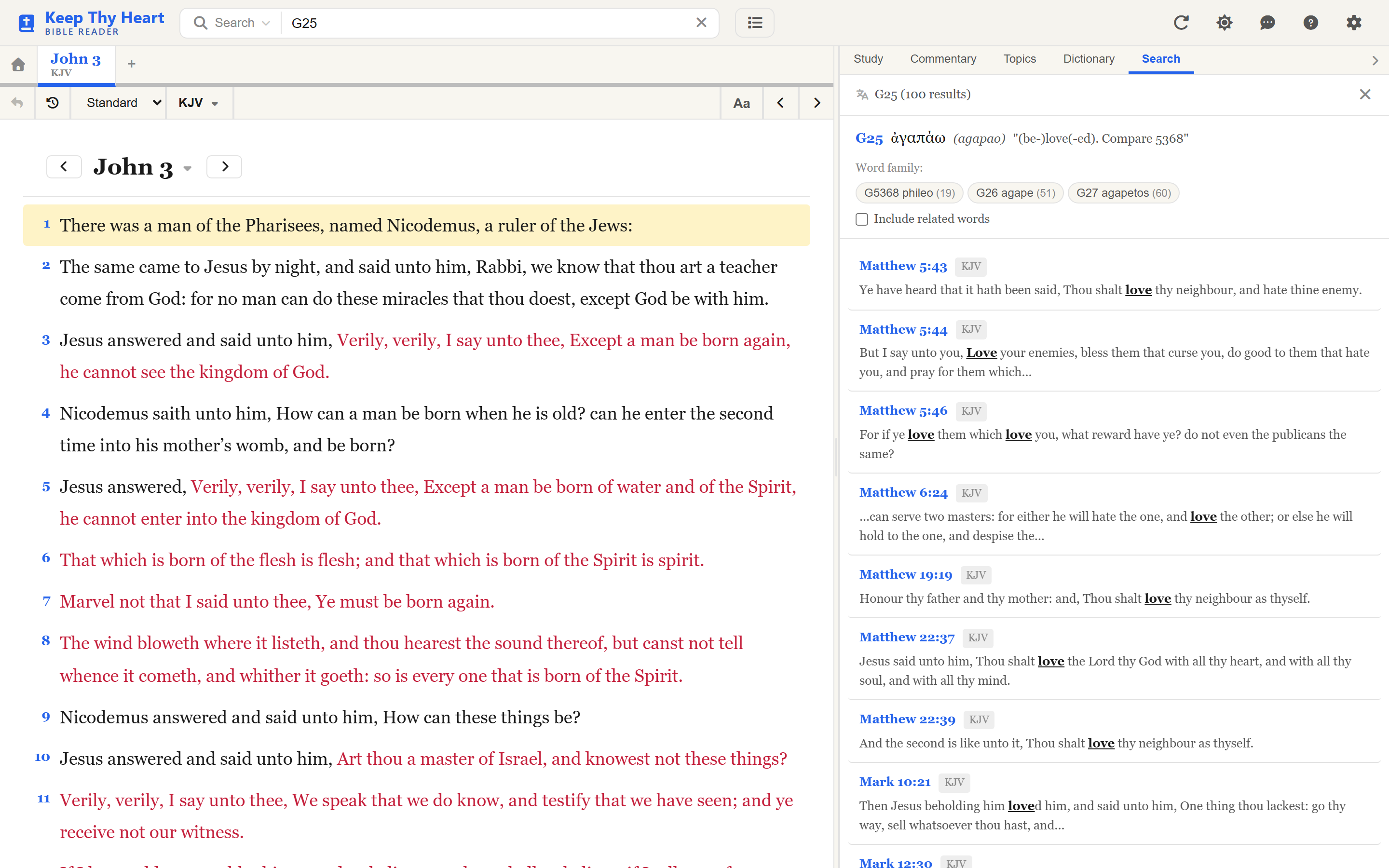
Greek and Hebrew words come in families — a verb, a noun, and an adjective built on one root. G25 (agapao, to love), G26 (agape, love), and G27 (agapetos, beloved) all belong together.
The Strong's popup has a Search all occurrences button that finds every verse using that word. The results show the word family as small pills you can click to switch words, and an Include related words toggle that searches the whole family at once.
You do not need Study mode for this: type a Strong's number straight into the search bar. See Searching.
Where to go next
- Switching to Study mode and the other display options: Reading the Bible.
- Searching for words, ideas, or Strong's numbers: Searching.
- Making the study panels comfortable to read: Personalizing Your Experience.
- How all this is arranged on a phone: Using on Your Phone.